

Author
Vio TeamPublished
2 mins readProducts are the things you sell. Every order line item points back to a product, so a solid catalog — with prices and stock levels — makes the rest of your back office run smoothly.
You can add products by chatting with your assistant or by filling in the short form. Both give you the same clean record.
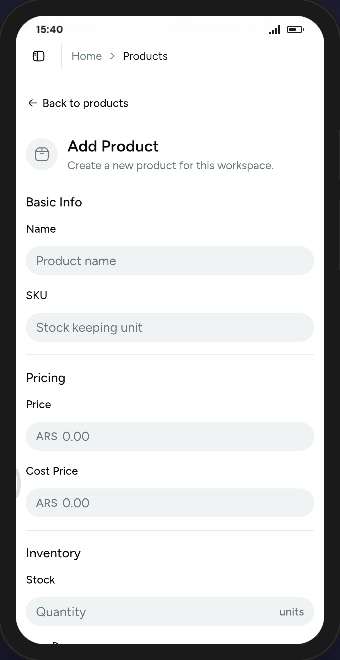 The Add Product form covers the essentials: name, SKU, pricing, and inventory.
Add a product step by step
- Open Products in your workspace and click the + button.
- Under Basic Info, enter the product Name and an optional SKU (stock keeping unit) to identify it.
- Under Pricing, set the Price you sell at and an optional Cost Price so Vio can track your margin.
- Under Inventory, enter the Stock on hand so low-stock items are easy to spot.
- Add a Description and, if you make items to order, use the made-to-order option with prep days.
- Save, and the product joins your catalog.
Money fields use your workspace’s default currency, so prices are entered the way you actually think about them.
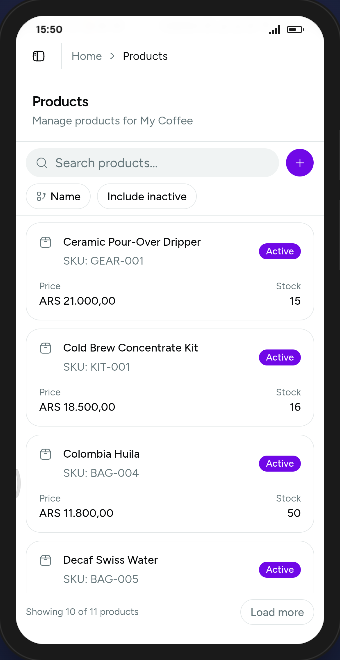 The product list shows price and stock side by side, with an Active badge for each item.
A few things worth knowing
- Only a name and price are required — everything else can be filled in later.
- Products can be active or inactive. Inactive items are hidden from the default list, but you can reveal them with the Include inactive toggle and reactivate when needed.
- The list is searchable, so even a large catalog stays quick to navigate.
Ready to stock your shelves?
Add a few products, then create your first order to see them in action.
Leave a Reply
Fill all fields so we can get some info about you. We'll never send you spamRelated Posts
Explore more articles that dive deeper into tips, trends, and strategies to help you get the most out of Vio and beyond.

0 Comments
Join the conversation