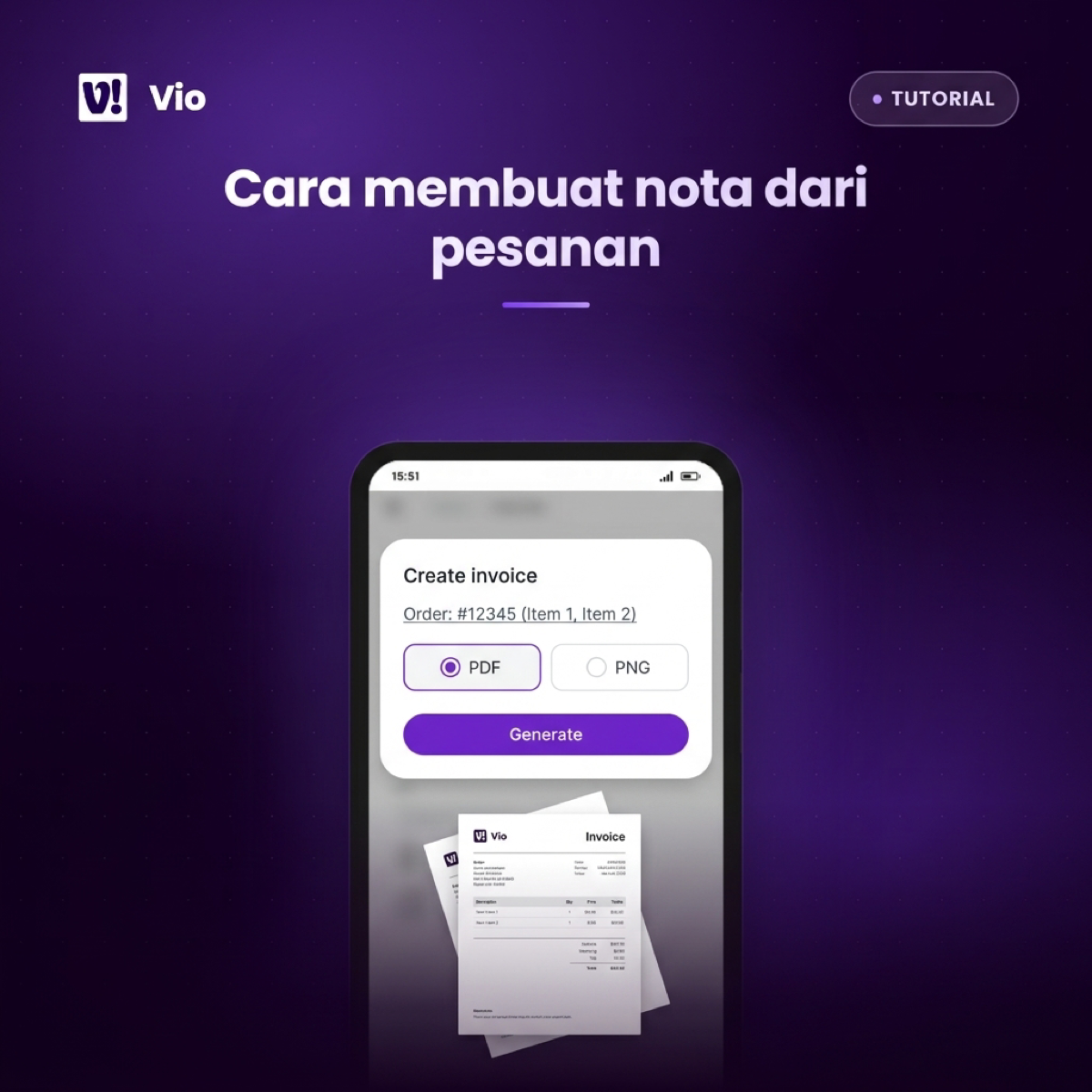

An order comes in on WhatsApp. You reply with a price, the customer agrees. Then comes the part that never feels finished: making the invoice. You open Word, hunt for a template you saved somewhere ages ago, and retype the items you already typed into the chat five minutes ago.
This post covers two ways to create an invoice from an order. First, the manual way most people learn, including the part that rarely gets discussed: what happens when the order changes. Second, creating the invoice from an order already recorded in your workspace, so nothing gets typed twice.
One note on terminology. Vio calls the document an invoice — generated as a PDF or PNG from an order. If you sell in Indonesia, your customers will probably keep calling it a “nota”; nothing about the workflow changes.
The most common ways to create an invoice — and why they get tiring fast
The oldest method is the carbon-copy notebook. You write the customer’s name, the items, the quantities, and the total; the first page goes to the buyer, the copy stays with you. For one or two transactions a day, it still makes sense.
Step up a level, and many owners build an invoice template in Word. The shop header is designed once, the item rows get filled in every time, and the file is saved under the customer’s name. The result looks neat — but every new invoice means one more file to name and to find again later.
Excel comes in when you want the totals calculated for you. You set up formula rows, copy them into a new sheet, and save the result as a PDF. Canva shows up for a different reason: it looks better, especially if the same document doubles as promotional material.
All of these methods share one trait. The invoice is a document you build from scratch every time, and its data doesn’t live where the order lives. You become the bridge between the chat, the notebook, and the document.
The cost shows up in two moments. First, the order changes: the customer adds an item, asks to change the delivery address, or you entered the shipping cost wrong. In the notebook you cross things out; in Word and Excel you reopen the file and make sure the totals are right again.
Second, you need the same invoice a second time. The customer asks for a copy, or you’re reconciling sales at the end of the month. If the file can’t be found, you rebuild the document from scratch — and this time the numbers risk disagreeing with what the customer already received.
That is not carelessness on your part. It is simply how documents behave when they live separately from the orders they represent.
What every invoice needs to include
Before talking tools, let’s agree on the contents. An invoice that works for confirmation, billing, and reconciliation usually includes:
- Invoice number — sequential, so a transaction can be referenced without naming the customer.
- Invoice date — when the document was created, not when the goods shipped.
- Your business identity — business name, address, and a contact number.
- Customer identity — name, phone number, and shipping address if the goods are delivered.
- Item details — item name, quantity, unit price, and the subtotal for each line.
- The money math — subtotal, discount, shipping cost, and final total.
- Payment status — paid or not yet, and the method used.
- Notes — special instructions, like delivery timing or a customer request.
If everything above is there, your invoice covers most small-business transactions. The most commonly skipped item is the last one — and it’s often that small note that saves you when a customer asks about their delivery schedule.
How to create an invoice from an order in Vio (step by step)
In Vio, you don’t start from a blank document. The invoice is created from an existing order, so the customer, the items, and the totals are already filled in before you pick a file format.
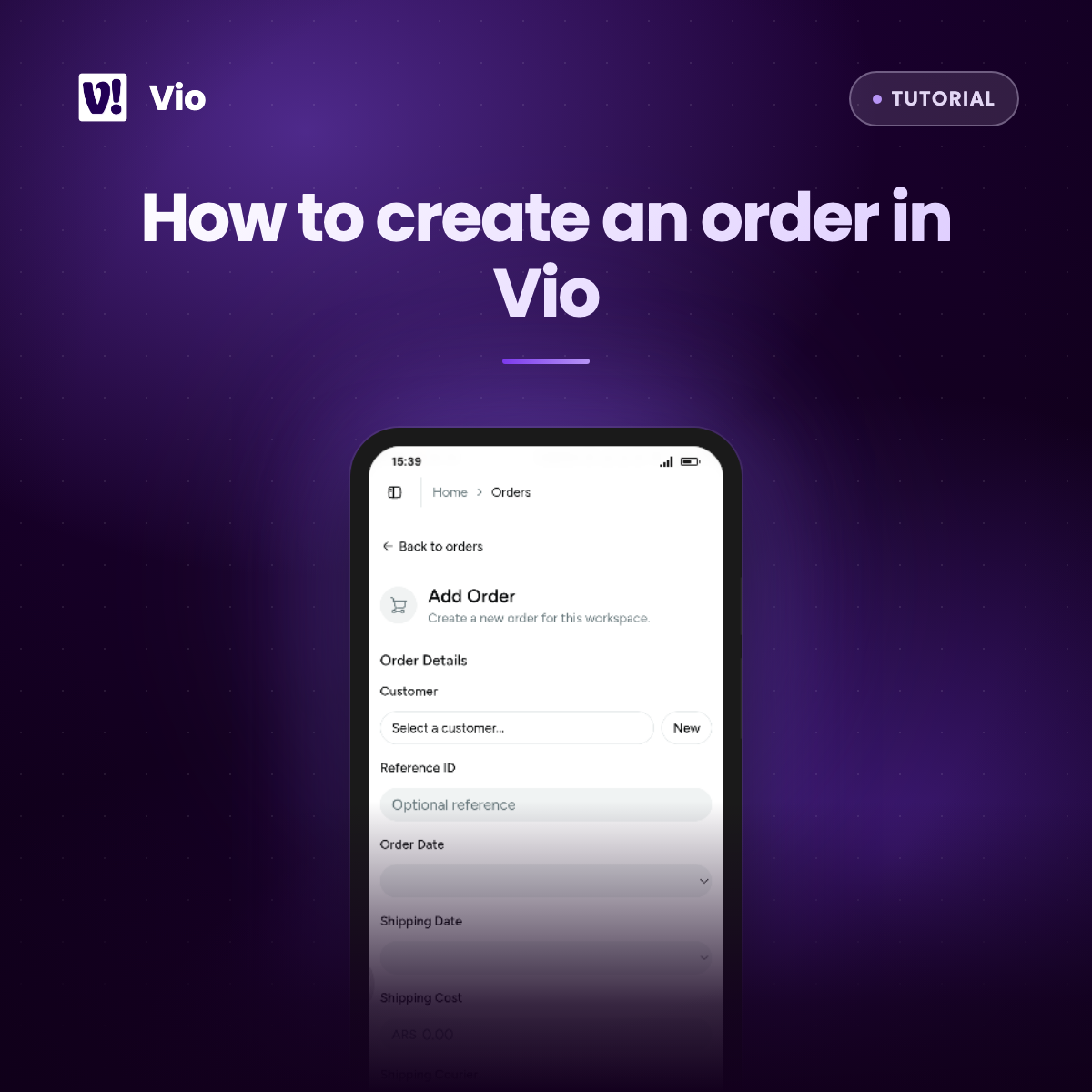
The order needs to exist first. The guide is in creating an order. If the customer isn’t on file yet either, start with adding a customer.
- Open Orders and pick the order you want to invoice. Use search or the status filters once the list gets long.
- Check the order detail page. Make sure the customer, items, quantities, prices, discount, and shipping cost are right, because the document will follow whatever the order says.
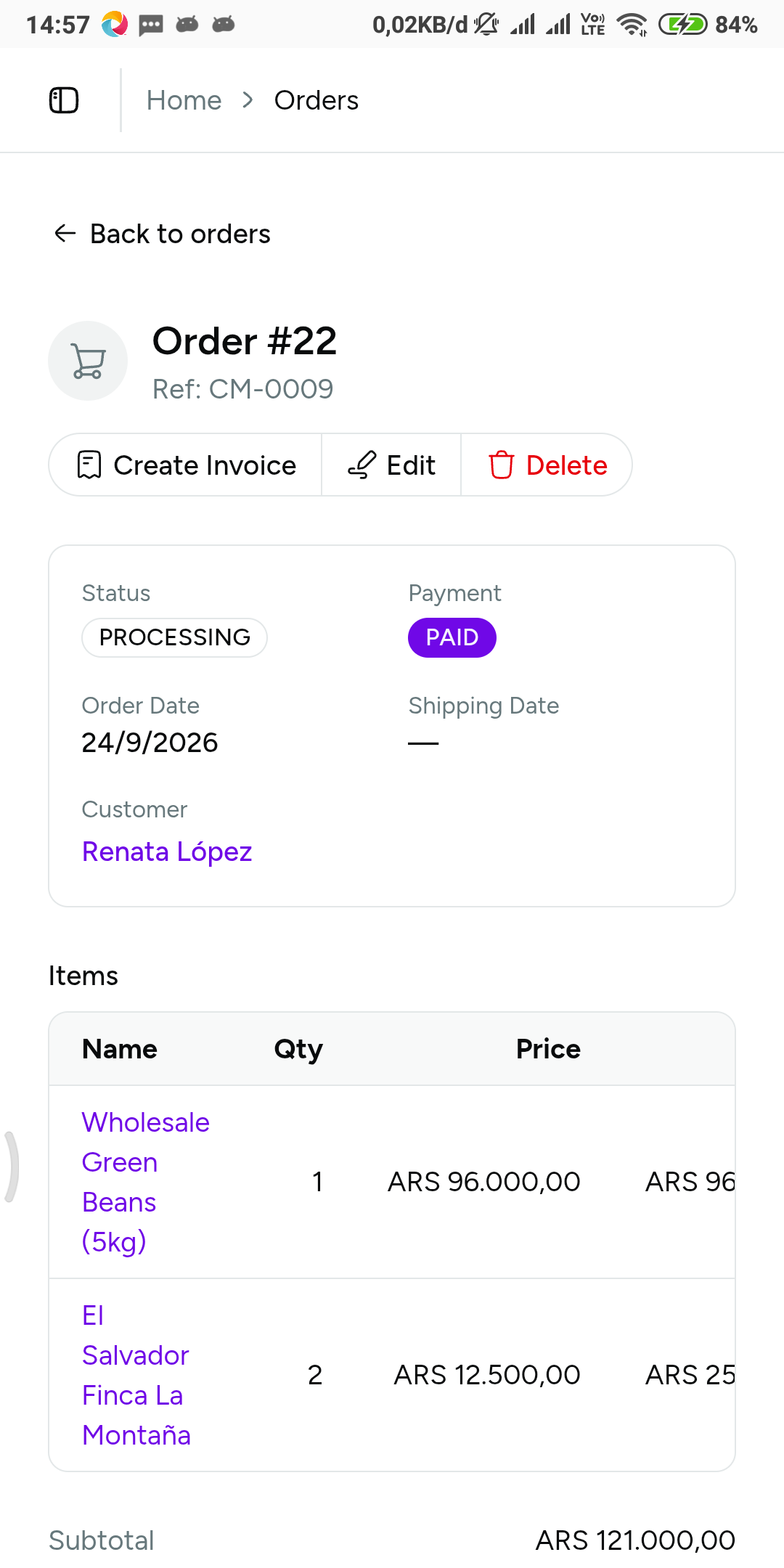 The order detail page is where the invoice starts: every item and total is already here.
- Run the action to create an invoice from that order.
- Choose the output type: PDF for a document ready to print or attach, PNG for an image that opens easily in a chat.
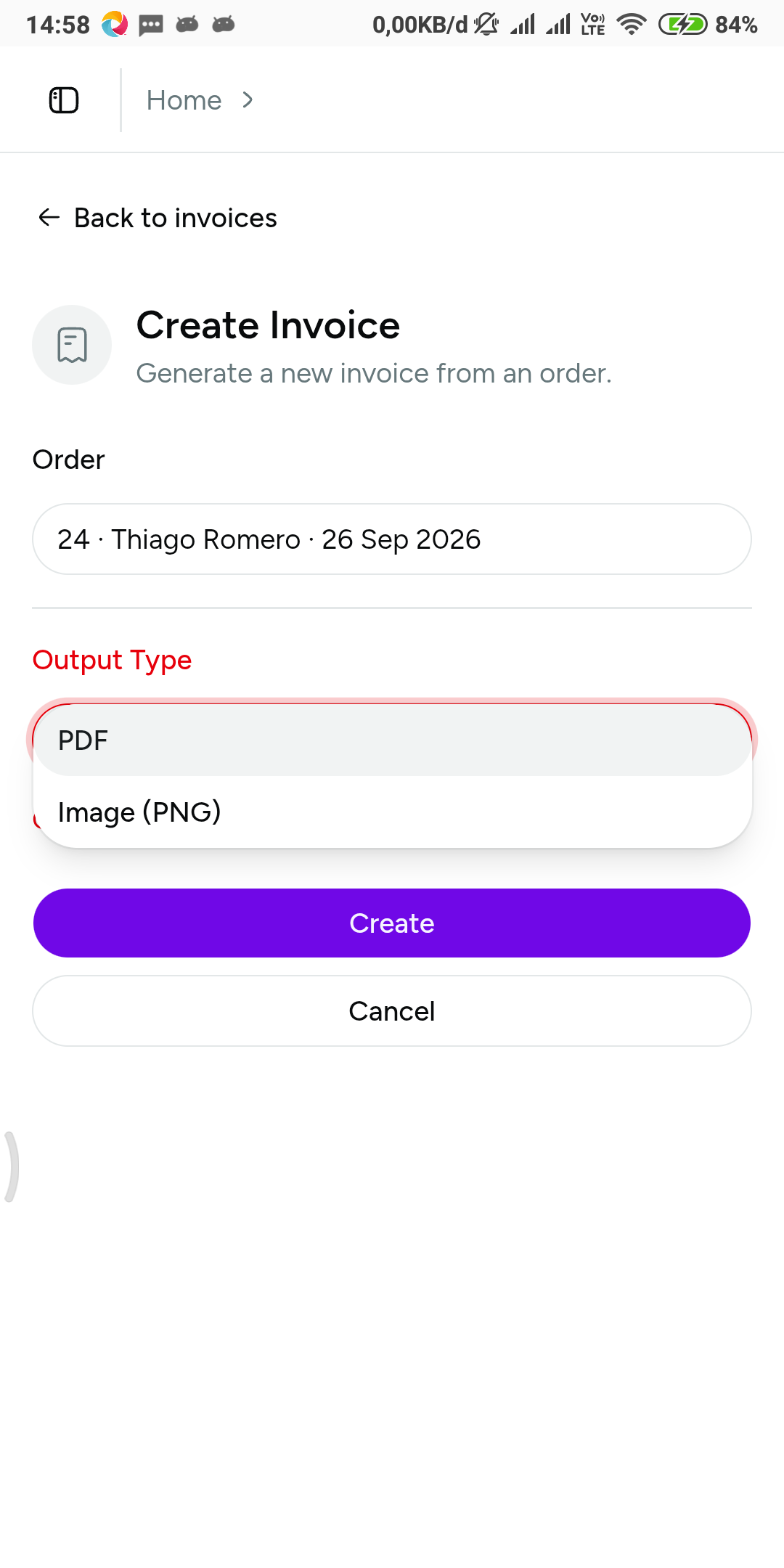 Pick PDF or PNG depending on how you send the invoice to the customer.
- Download the file. The document shows the invoice number, the customer’s name, the line items, and the total in your workspace currency — while the link back to the order lives on the invoice’s page in Vio.
- Send it to the customer yourself. The invoice stays in the invoice list, so there’s no separate folder to archive copies in.
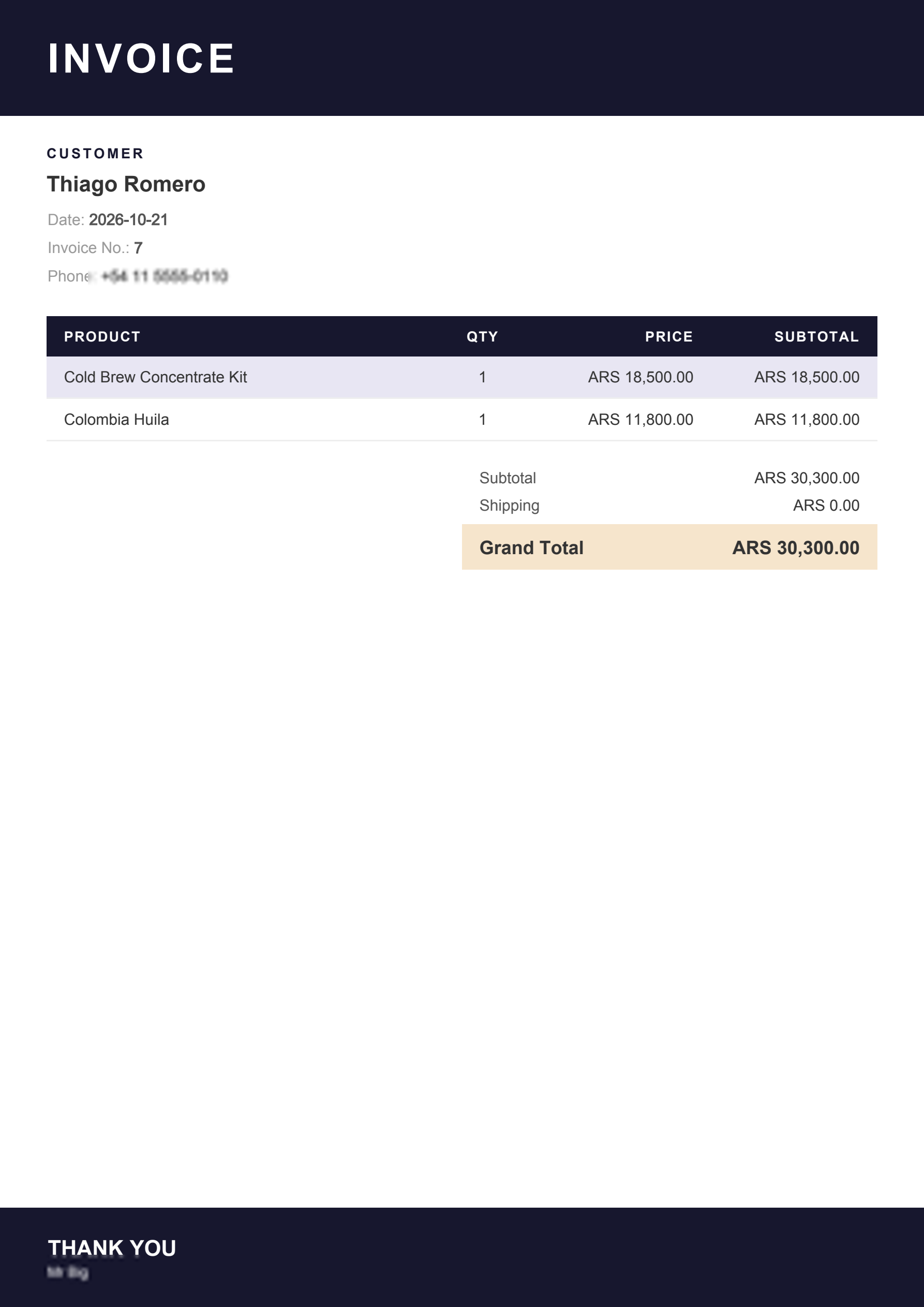 A finished invoice, complete with invoice number and order total.
If you’d rather work by conversation, the assistant in your workspace can also be asked to create an invoice from a specific order. Name the order, then review and download the document it prepares.
One thing to keep in mind: recording orders still involves you. Orders from WhatsApp don’t flow into the workspace on their own — you or your team make the record, and the invoice follows that record.
When the order changes, the invoice is just regenerated
This is the part that differs most from the manual methods. Because the invoice is created from the order, the source of truth is the order, not the document.
Say the customer adds an item after the invoice was sent, or the shipping cost you entered turns out to be too high. What you fix is the order. Then open the related invoice and regenerate the document. Nothing gets retyped, because the new items and totals follow the updated order.
If the old document is already out the door and shouldn’t be used anymore, mark that invoice as void. An invoice in Vio has only two statuses — issued or void — so it’s always clear which documents still count.
The same applies when you need the same invoice a second time. The customer asks for a copy, or you’re matching up this month’s sales. Open the invoice list, filter by status, and download the file again. No document has to be built from scratch.
Nota, invoice, and receipt: what’s the difference?
These words get used interchangeably, even though the documents do different jobs. A nota — the word Indonesian shops use — is a record of the sale, usually handed over right when the order happens. An invoice is a bill that itemizes what needs to be paid. A receipt is proof that payment has been received.
In a small shop, one sheet often does all three jobs. In Vio, the document is called an invoice because it’s created from an order — even if your customers keep calling it a nota. When payment changes, update the payment status on the order.
Frequently asked questions
Do I need an order before I can create an invoice?
Yes. In Vio, invoices are created from orders that are already recorded, not from a separate document form. The order is deliberate: items, prices, and totals are pulled from the order, so no number needs to be typed twice. If the order doesn’t exist yet, create it first in the Orders section.
If a number is wrong, can I edit the invoice file?
You don’t edit the PDF or PNG directly. Fix the order first — an item quantity or the shipping cost — then regenerate the document from the related invoice. The new document follows the corrected order data, and the old one can be marked void so it isn’t used again.
What file format do I get?
When you create an invoice from an order, you choose PDF or PNG. PDF suits printing or attaching as a document; PNG is easier to read directly in a chat. If one invoice has more than one file, you can download just the file you need.
A customer asks for a copy of an old invoice — how do I get it?
Open the invoice list in your workspace and find the document. You can filter by status, then download the file again. Because the invoice is stored alongside its order, you can also open the source order to confirm it’s the right transaction before sending the copy.
Start with one workspace, then create your first invoice from an order that’s already there. Every invoice after that comes from orders you were recording anyway.

0 Comments
Join the conversation