
There was a time when closing a sale meant walking back to a desk, opening a laptop, and typing what just happened — customer, items, quantity, payment — into an order form. This tutorial on the WhatsApp AI assistant for business shows what a full day of that work looks like when it happens in a chat thread instead.
One thing to set straight first: the assistant does not talk to your customers. Vio is a back office, not a customer-facing chatbot, POS, or support desk. You — the owner — message your own assistant on WhatsApp, and it does real work on your workspace data: look up or create customers, orders, and products, draft an invoice from an order, and answer questions about sales and performance.
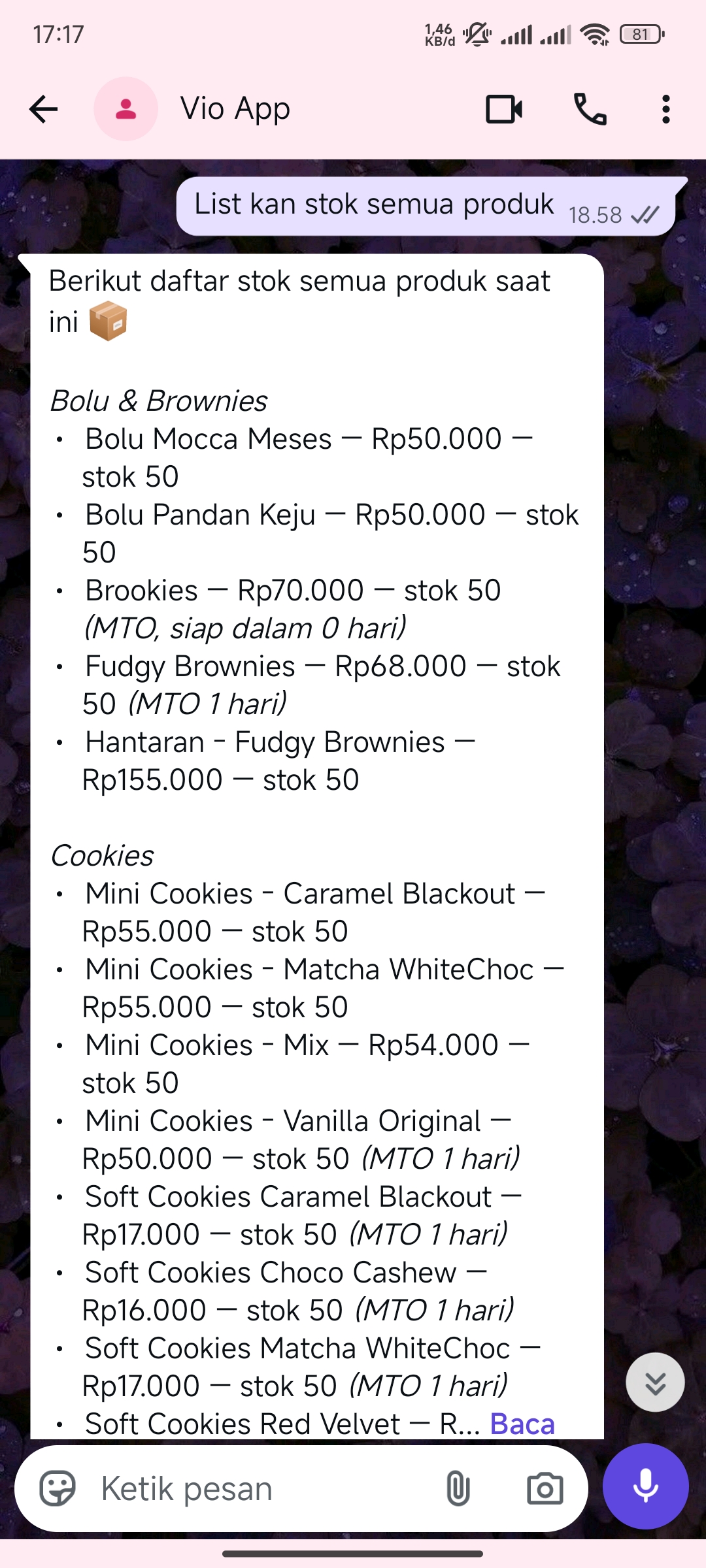 One message, an answer pulled live from the workspace catalog — and in that same thread, the next sale can be logged just as easily.
Below are four scenarios that cover a typical day, plus how to write messages the assistant actually acts on — and the limits to keep in mind.
What you need before you start
- A connected WhatsApp channel. Pairing is covered in how to connect a channel to your assistant in Vio and how to connect Vio to WhatsApp — this post starts after it’s done.
- An assistant bound to that channel, with the right skills. Every channel is bound to one assistant, and its skills decide what it can do: look up or create customers, orders, and products; draft an invoice from an order; answer questions about your business. If something you need isn’t covered, check the skills first.
- A workspace already running your business. The assistant works on your workspace’s data — customers, products, orders — not a separate system with its own copy.
Morning: log a walk-in sale from a chat thread
Bu Ratna stops by for two boxes of frozen rendang and pays cash on the spot. Instead of waiting until you’re back at the desk, you message the assistant while you’re still at the counter.
You message: “New sale: Bu Ratna bought 2 boxes of frozen rendang at catalog price, paid cash. No delivery — she took them with her. Log it.”
What the assistant does: it looks up Ratna in your customers — creating the record if it doesn’t exist — then creates the order, pulling the product’s name and price from your catalog into the line item. Each step streams in as it works: lookup, then order creation. You see what it’s doing, not just the final answer.
You verify: open the order in Vio (web or Android). The detail page links back to the customer and the products on the order, and status and payment stay editable from there. The form-based version of the same work is covered in how to add a customer in Vio and how to create an order in Vio.
One message, two records, zero retyping at a desk. That’s what managing orders from WhatsApp actually looks like.
Midday: “what happened to that order?”
Status questions never wait for a convenient moment. A partner asks about an order while you’re out, and all you have is your phone.
You message: “What happened to Bu Ratna’s order from this morning? Has the payment been marked?”
What the assistant does: it finds the order — by customer, or by the reference ID in your own numbering — and reads the record back. Order status sits on a clear pipeline (pending, processing, shipped, delivered, completed, cancelled), payment is tracked separately (unpaid, pending, paid, refunded, failed), and courier and tracking details come along if they’ve been recorded.
You verify: open the same order in the Orders list and compare. The assistant answers from the same record you’d open in the app, so chat and workspace can’t drift apart.
Afternoon: “draft an invoice for the last order”
The sale is fulfilled; the invoice is next. Trust this one in steps: ask, let it act, then verify.
You message: “Draft an invoice for Bu Ratna’s last order.”
What the assistant does: it drafts the invoice from the order itself. Because Vio invoices are generated from an existing order, the customer, the items, and the totals are already in place — nothing retyped, nothing mistyped along the way.
You verify: open the invoice in Vio. It shows the invoice number, total, and currency, with links to the source order and customer — jump straight to them from the invoice detail. If the order changes later, you regenerate the invoice instead of rebuilding it; if it shouldn’t stand anymore, you void it. Confirm the links point where you expect, and the loop is closed.
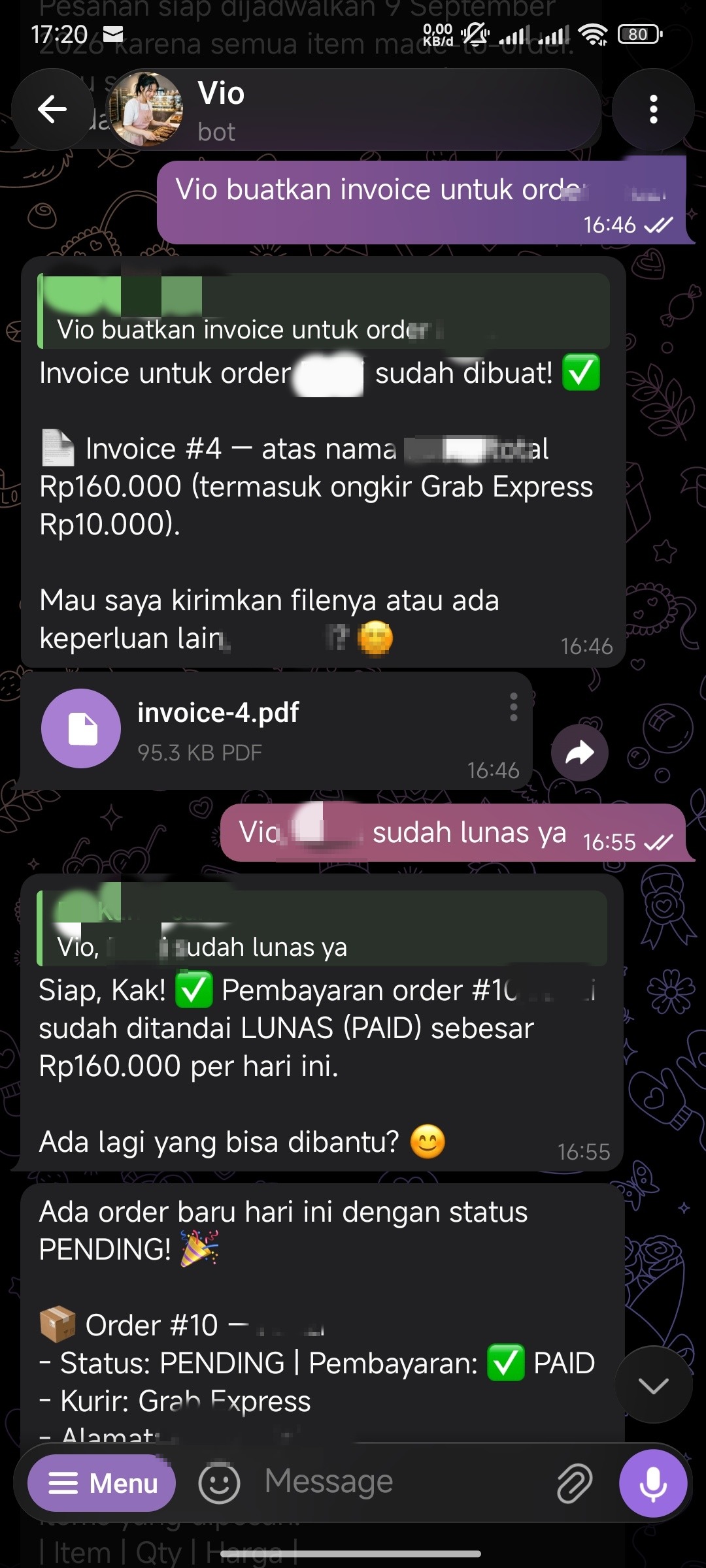 The same ask-and-verify flow on a connected channel — shown here on Telegram: the assistant creates the invoice from the existing order, and the payment status can follow in the next message.
End of day: “what sold best this month?”
Before you close up, you want the month’s picture — not one spread across five screens.
You message: “What sold best this month?”
What the assistant does: it answers from your analytics, which are computed from the very orders you fulfilled all day. Expect top products ranked by revenue, with units and profit in the detail, alongside net revenue, order count, gross profit and margin, average order value, and each one’s change versus the previous period — all in your workspace currency.
You verify: open Analytics, set the period to 30 days, and check that the story matches. Reporting built on operational data means there’s no separate dashboard to reconcile against your order list.
How to write messages the assistant acts on
- Say it like you’d tell a colleague. “Create this order,” “draft the invoice,” “what sold best?” — plain language beats clever prompting.
- One task per message. Ask one thing, verify it, then move on.
- Trust your setup. The assistant works from your workspace settings — business details, currency, tax rate — so you don’t repeat them in every message.
- Watch the steps. Reasoning and tool-call visibility show you what the assistant is doing, so a wrong turn is obvious before it compounds.
- Correct and resend. You can edit a sent message, regenerate the response, or stop a generation mid-stream — mistakes are cheap.
- Attach context. Messages support images and files — a product photo can travel with your request to add it to the catalog.
- Pick up where you left off. Chat history is kept per assistant: sessions list message counts and relative activity time, and they’re searchable.
The limits, so there are no surprises
- It works within its skills. The assistant acts on your workspace data through the skills enabled for it. If a task doesn’t happen, the fix is usually configuration — not different phrasing.
- One assistant per channel. Different channels can serve different assistants for different purposes. Whoever answers is whoever that channel is bound to.
- Recurring work runs on schedules. You can create scheduled commands — a cron expression, its own timezone, and a prompt — scoped to an assistant, so recurring work like a weekly order review runs on its own.
- There’s a daily AI usage budget. Usage is measured per workspace on a meter shown as a percentage: a warning at 80%, a hard stop at 100% until the budget resets, and a clear message when the assistant can’t run yet.
- It’s a back office. The assistant does back-office work for you. It isn’t a customer-facing chatbot, a POS, or a support desk — and your accounting, legal, and tax judgment stays yours.
Common mistakes
- Asking for work outside the assistant’s skills. An assistant without the store-management skill set can’t create your orders. Check what’s enabled before you blame the answer.
- Forgetting each channel is bound to one assistant. If answers seem to miss context you configured, you’re probably messaging a different assistant.
- Stacking three tasks into one message. “Create a customer, order, invoice, and tell me the margins” is four verifications in disguise. One task at a time keeps the ask → act → verify loop honest.
- Skipping the verify step. Records are linked — invoice to order, order to customer and products — precisely so you can confirm in a few taps. Those checks build the trust that lets you work the day by chat.
Frequently asked questions
Can a WhatsApp AI assistant for business reply to my customers?
No, and Vio isn’t built to. Vio is a back office: the owner messages their own assistant to get operational work done. Your customer conversations stay your own — the assistant handles the records behind them.
What can the assistant actually do when I message it?
It can look up or create customers, orders, and products, draft an invoice from an order, answer questions about sales, customers, products, and performance, generate filled documents from workspace templates, and even open a support ticket from the conversation — all through its enabled skills, scoped to your workspace.
Does it work on real data or just chat?
Real data. The assistant works only inside your workspace, acting on the same customer, product, order, invoice, and analytics records you see in the web and Android apps.
What happens when I hit the daily AI usage budget?
You’ll see the workspace usage meter as a percentage, with a warning at 80% and a clear message when the budget is used up. The assistant pauses until the budget resets — nothing silently degrades before that.
Is it the same assistant in the app and on WhatsApp?
Yes. The channel is just a route to one of your workspace’s assistants — same persona, same skills, same data. You can also connect Telegram the same way, and reach the assistant in the web and Android apps.
Run tomorrow from a chat thread
You don’t need to learn a new interface — you already live in WhatsApp. What this tutorial walked through:
- Log a sale by chat — customer and order created, price pulled from your catalog.
- Check any order in seconds — status and payment, read from the same record as the app.
- Draft an invoice from an order — then verify its links back to the order and customer.
- Close the day with analytics — top products and headline numbers, asked in plain language.
Pair the channel, bind the right assistant, and send tomorrow’s first message from wherever you are.



0 Comments
Join the conversation