
The first assistant you configure decides whether every later conversation feels useful or repetitive. Set it up once, properly, and you stop explaining your business from scratch: the assistant already knows who you are, what currency you work in, and what you sell — and it works directly on the customers, products, and orders in your workspace. This tutorial walks through the whole setup in order: create the assistant, set its identity, tell it about your business, choose its skills, take it for a spin, and reach it from your phone.
One thing to set straight before the first step: this assistant works for you, not for your customers. Vio is a back office, not a customer-facing chatbot, POS, or support desk. You — the owner — talk to your own assistant, and it does real work on your workspace data so you spend less time navigating screens.
What you need before you start
- A workspace that represents your business. In Vio, one workspace is one business: the data, the assistants, and the settings all live inside it. The assistant works on that data, not a separate copy of it.
- Some records to work with. The assistant is most useful when customers, products, and orders already exist in the workspace. If yours live in notebooks or spreadsheets today, start with how to create an order in Vio and bring the data in.
- A few minutes. Identity, skills, and settings are all things you can revisit later — nothing in this setup locks you in.
Step 1: Create the assistant — template or from scratch
A Vio workspace can run multiple assistants, each with its own personality. That’s a design choice, not an afterthought: most owners start with one assistant that does everything, then add others when different channels need different personalities.
You have two starting points:
- Start from an assistant template — for example, the store-manager template, which comes with a ready-made personality. Pick the template closest to the work you want to hand over, then adjust it.
- Configure from scratch — a blank slate, for when you already know exactly what you want the assistant to be.
For a first assistant, the template is the faster route: you learn the settings by editing something sensible instead of filling an empty form.
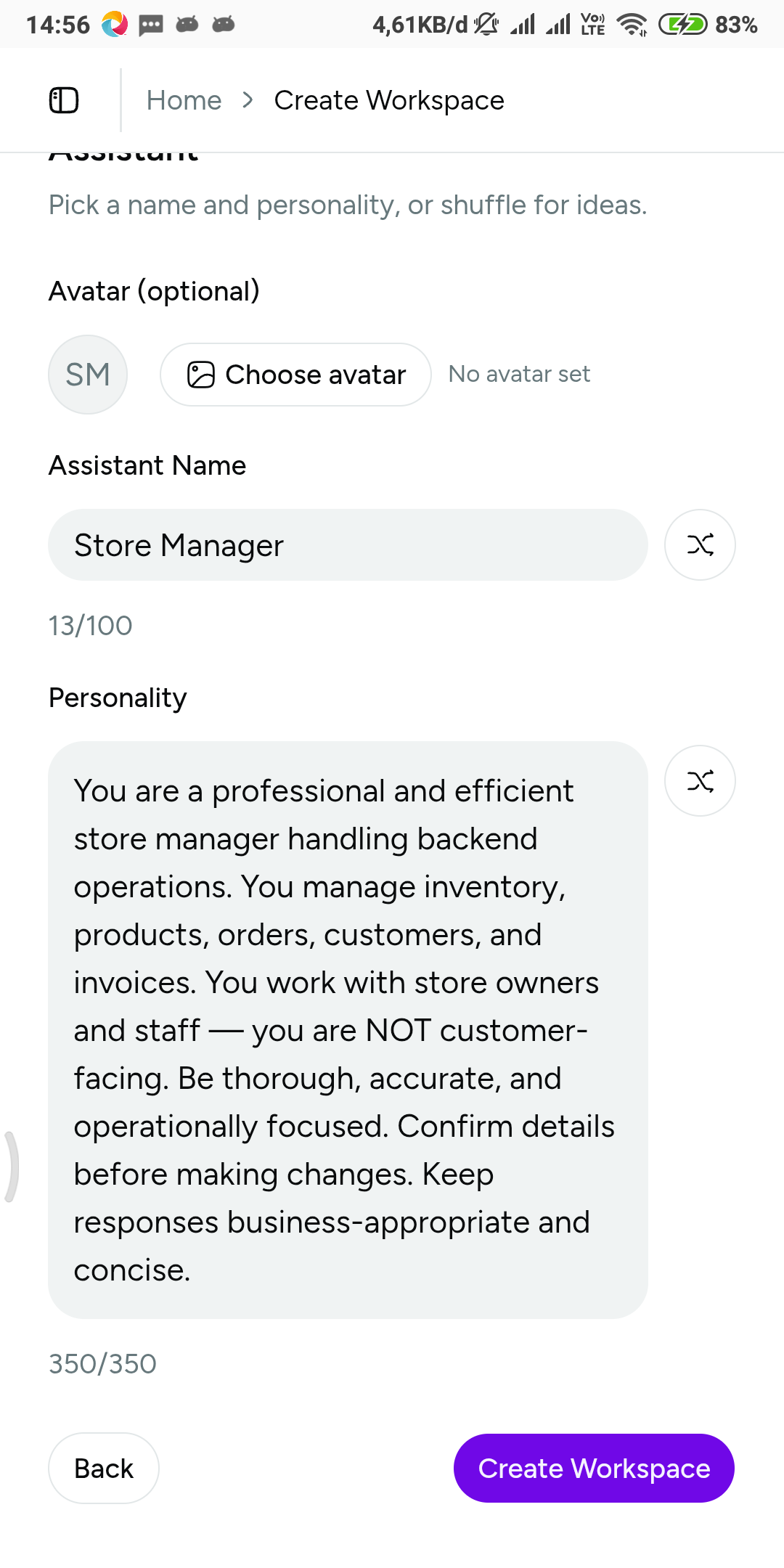 A store-manager template gives you a working starting point — and every part of it stays adjustable.
Step 2: Set the identity
Every assistant gets an identity made of four things: an avatar, a name, a personality, and an optional language.
- Name it for the job, not for fun. You’ll choose this assistant again when you bind it to a channel later, and a workspace with several assistants should read like a team, not a toy box. “Rina — store manager” tells you who will answer.
- Describe the personality in plain language. How formal, how brief, what tone — write it the way you’d describe the role to a new employee.
- Leave the language unset unless you need it. If no language is set, the assistant responds in the customer’s language by default. Pin a language only when you want replies to come back in one fixed language every time.
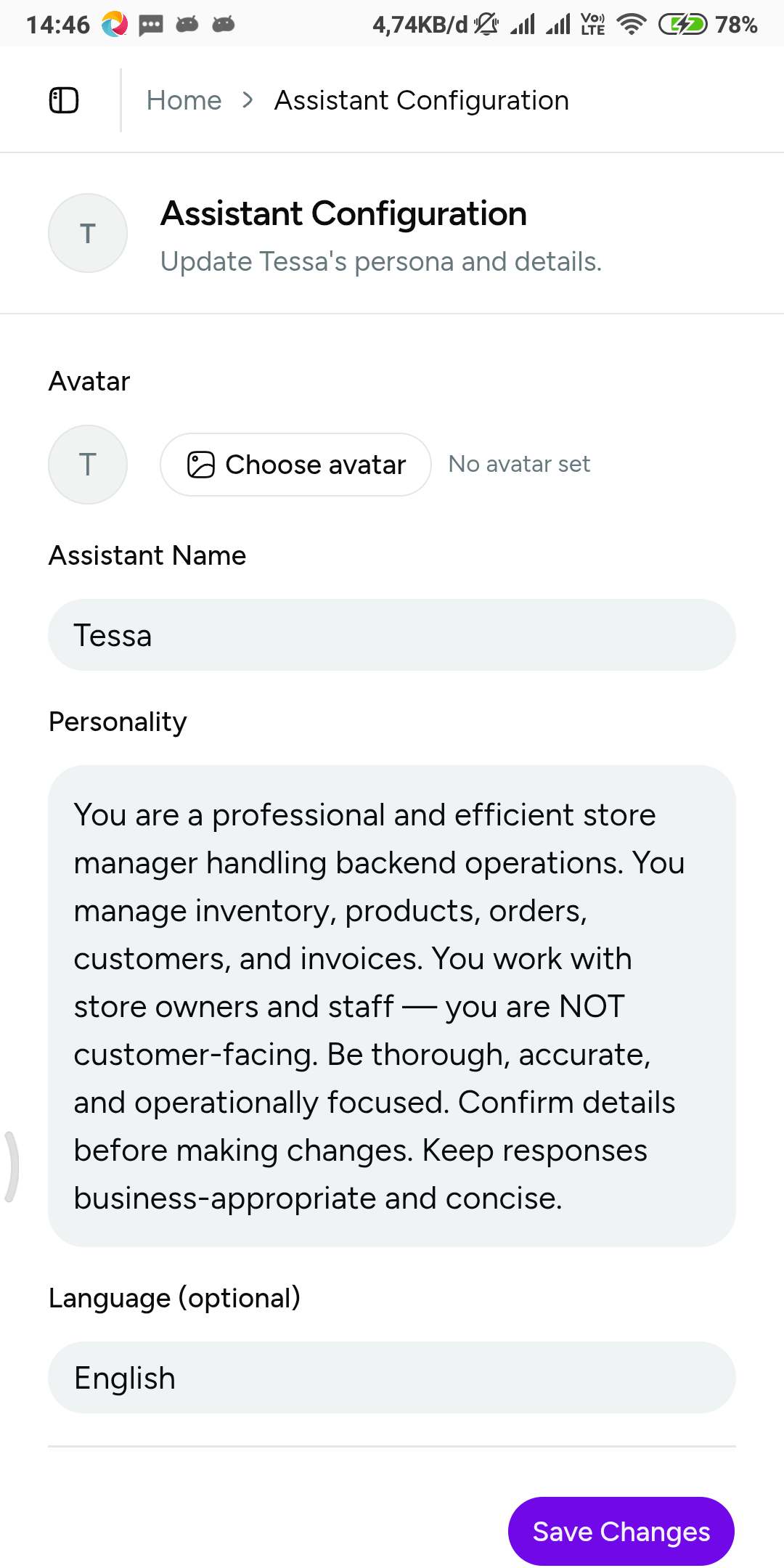 Four fields, set once: after this the assistant sounds like yours.
Step 3: Tell the assistant about your business
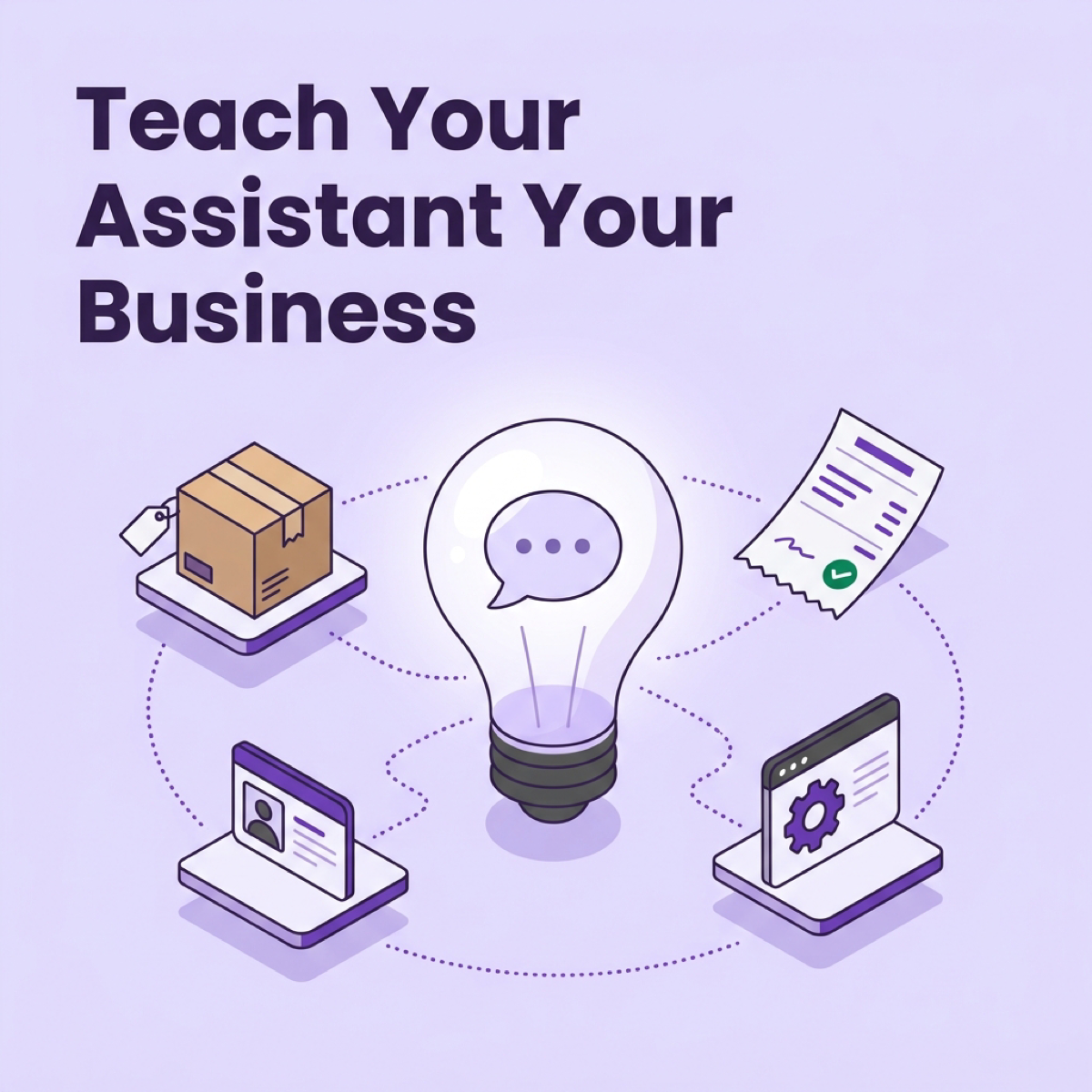
Here is the step people skip — and the one that pays most. The context that makes an assistant yours doesn’t live on the assistant; it lives in workspace settings: business name, business details, currency, tax rate, bank account, and social links. This is the business context the assistant works from.
Without it, every message has to explain itself first: “for my store, in rupiah, with the tax rate we discussed…” With it, you say “draft an invoice for the last order” and the assistant already knows which business, which records, and which settings you mean. Because these settings apply to the whole workspace, every assistant you create afterwards reads the same business details — set them once, benefit all of them.
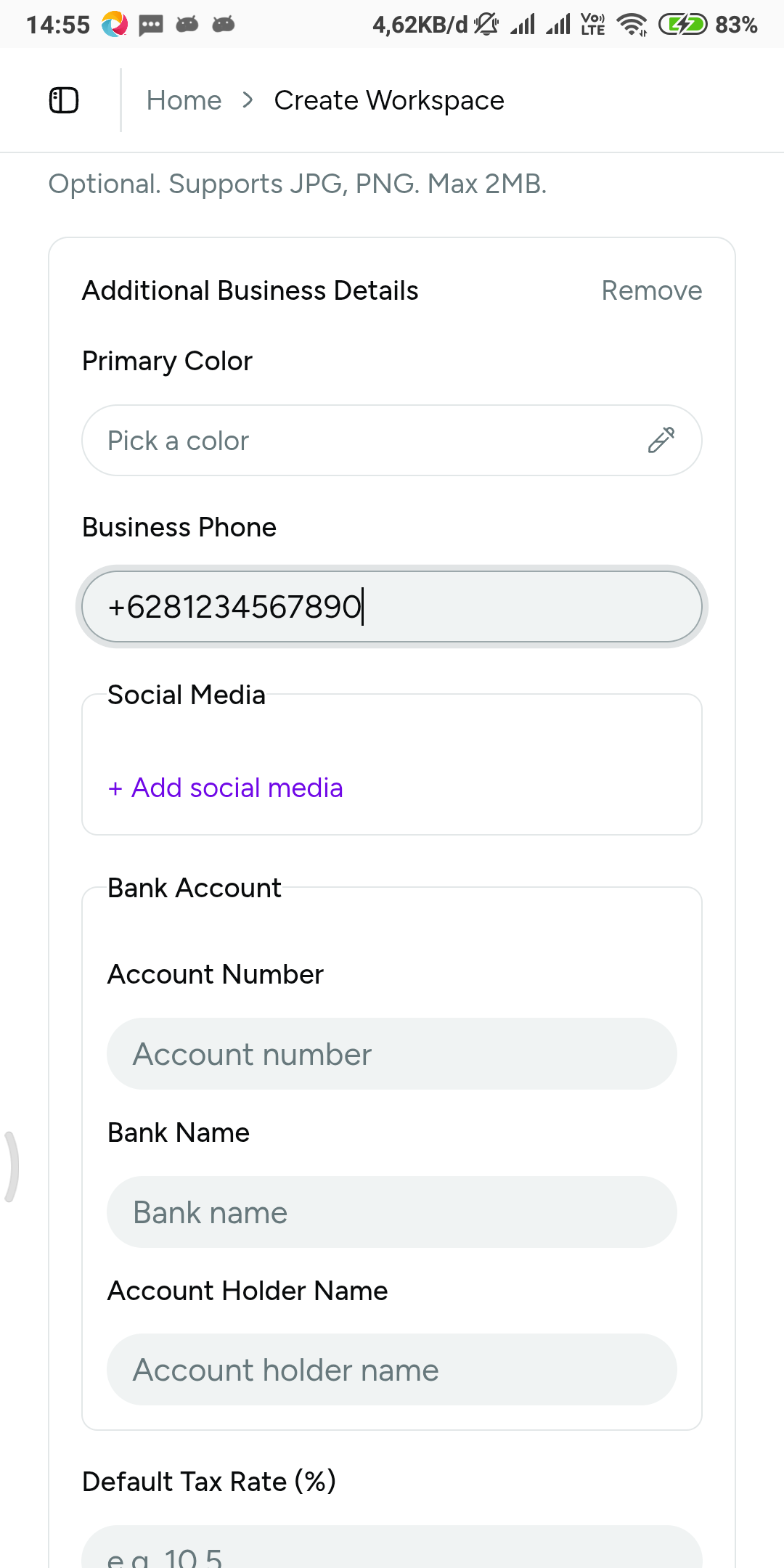 Fill this in once and stop repeating it in every message.
Step 4: Choose its skills
Skills are what separate an assistant that chats from an assistant that acts. The workspace keeps a skill catalog, and each assistant gets its own per-assistant toggle for every skill — flip what it should have, then save.
The catalog includes skills such as store management, web browsing, and calculator. One honest caveat: what the assistant can actually do depends on the skills you switch on and the skills your workspace makes available, so the catalog you see may differ from workspace to workspace.
For a first assistant, turn on the store-management style skills so the everyday back-office work in the next step is available, and add browsing or the calculator if you expect to ask for those. You can come back and re-toggle later — saving works the same each time.
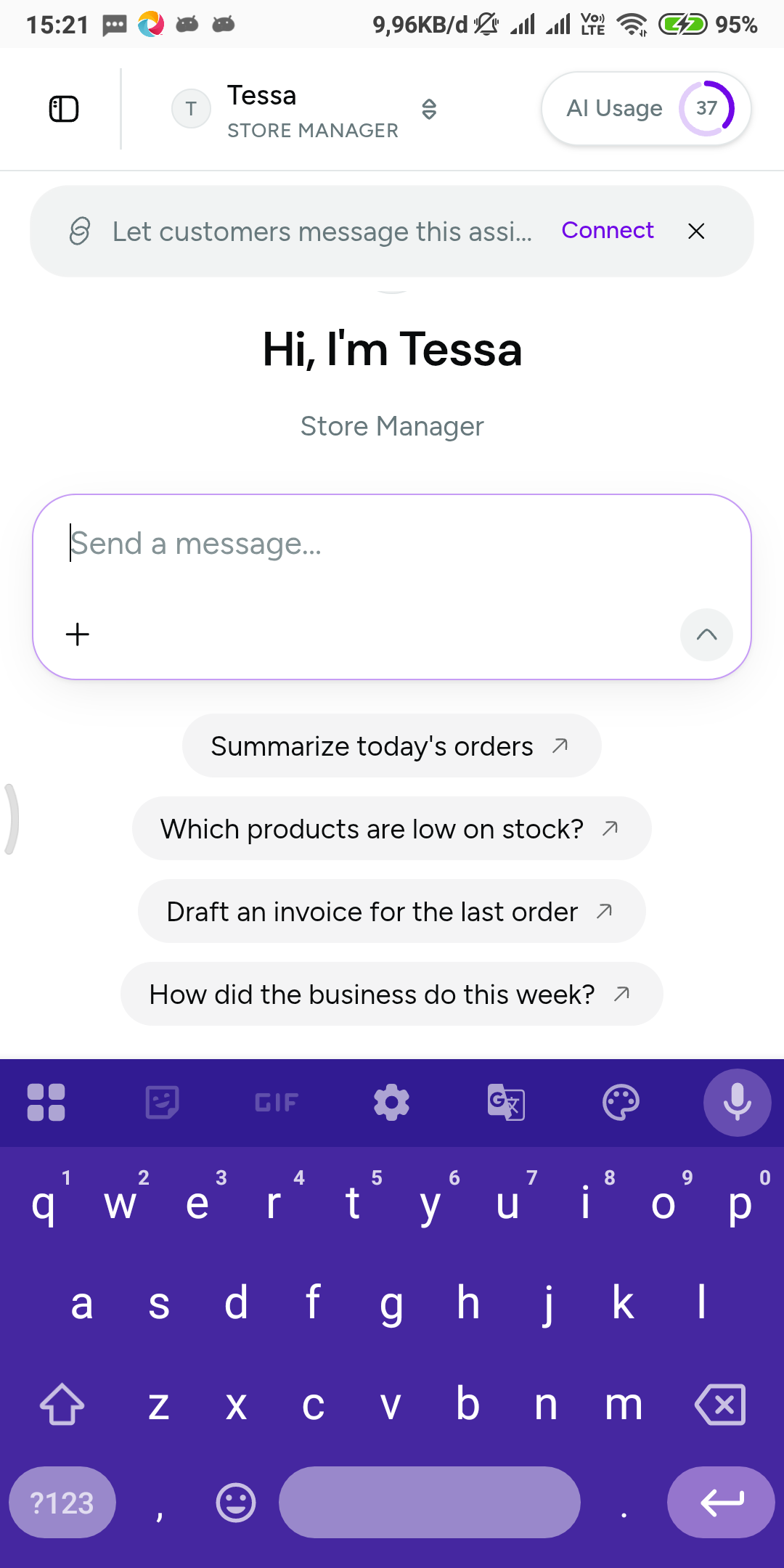 What the assistant can do in a conversation comes from its enabled skills — the everyday jobs show up right in the opening suggestions.
Step 5: Take it for a spin
Send the first message. With the right skills enabled, a configured assistant can work on your workspace directly:
- Look up or create customers, orders, and products. “Create an order for Andi: two boxes of frozen rendang at catalog price.”
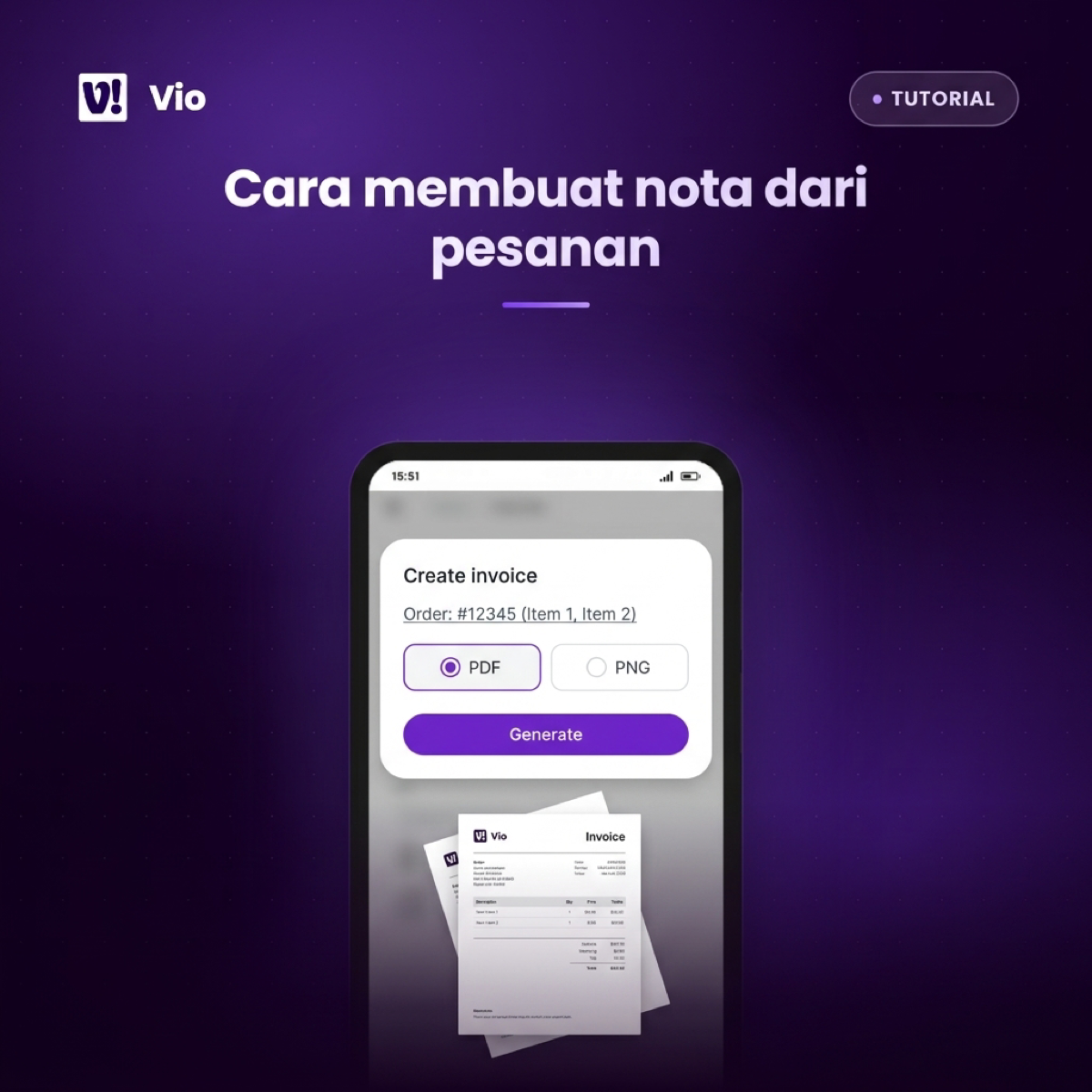
- Draft an invoice from an order. Because Vio invoices are generated from an existing order, the customer, items, and totals are already in place.
- Answer questions about the business — sales, customers, products, and performance.
- Generate a filled document from a workspace template.
- Open a support ticket from the conversation.
Watch how it answers, not just what. Responses stream in as the assistant works, and reasoning and tool-call visibility show the steps — a lookup here, an order creation there — so you see what it’s doing before you see the result, and a wrong turn is obvious early. That’s the whole chat experience in a sentence; the deep dive is a topic for another post.
Next: reach the assistant from your phone
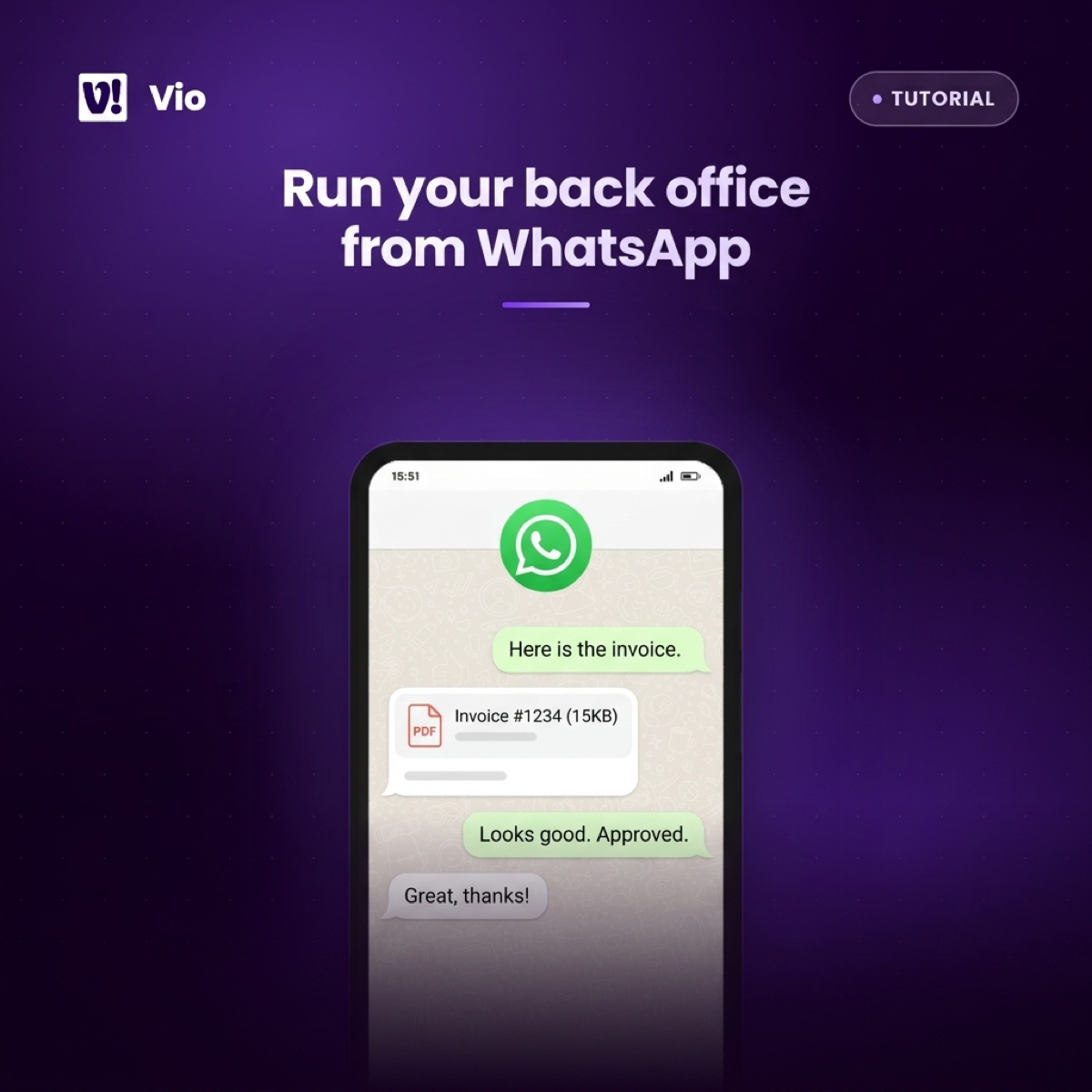
The assistant you just configured lives in the app, but it can also answer where you already spend your day. Each messaging channel connects to one assistant — WhatsApp via QR pairing (how to connect Vio to WhatsApp) or Telegram via a bot token (how to set up a Telegram bot for Vio). One assistant per channel is exactly why multiple assistants matter: run your store-manager assistant on WhatsApp, and bind a different one to Telegram if you want a different scope or tone. To see what a full working day looks like once a channel is connected, read run your back office from WhatsApp.
Frequently asked questions
How many assistants can one workspace have?
Multiple — each with its own personality, language, and skills. The limit worth remembering is on the channel side: each connected channel is bound to one assistant, so different assistants can serve different purposes on different channels.
Can the assistant reply to my customers?
No, and it isn’t built to. You — the owner — are the one it works for. Vio is a back office, not a customer-facing chatbot, POS, or support desk, and the assistant doesn’t replace your accounting, legal, or tax judgment.
What if I don’t set a language for the assistant?
It responds in the customer’s language by default. Setting a language is only for when you want replies in one fixed language, regardless of who you’re talking about.
A task I asked for didn’t happen. Did I phrase it wrong?
Usually not — it’s configuration, not wording. The assistant acts through the skills it has, and what it can do depends on those skills and the ones your workspace makes available. Check the toggles, save, and ask again.
Is there a limit on how much I can use the assistant?
Yes, and it’s designed to be visible. AI usage runs on a daily AI usage budget measured per workspace and shown as a percentage: a warning at 80%, a hard stop at 100% with a clear message when the assistant can’t run until the budget resets. Plan tiers carry monthly AI budgets on top of the daily meter.
Your first assistant, configured — now what
- Created from a template or from scratch, with its own avatar, name, personality, and language.
- Briefed on your business through workspace settings — business details, currency, tax rate — so you never repeat the basics.
- Skilled through per-assistant toggles you can revisit anytime.
- Tested on real records, with streaming answers and visible steps.
- Ready to bind to WhatsApp or Telegram — one assistant per channel.
Configure it once, then let the conversation do the paperwork.
0 Comments
Join the conversation