
The order was packed, the goods went out, the invoice landed in the customer’s chat. Two weeks later they ask for a copy, and you start scrolling — was their version before or after you fixed the shipping cost? The actual question — has this customer paid? — still lives in your head, alongside eleven other orders you’re waiting on.
The gap between “sent” and “known to be paid” is where invoices quietly rot in a lot of small businesses. In Vio, both sides of that gap are records: the invoice is generated from the order and stays linked to it, and payment is a set of fields you update on the order itself. This tutorial walks the full loop — invoice, send, mark paid — and shows which steps you can run by chat with your assistant instead of on the screens.
One boundary first: creating an invoice from an order covers building the document. This post picks up after the file exists: getting it to the customer, and keeping a dependable record of who has paid.
“Sent” is not the same as “paid”
Three different things get collapsed into one mental checkbox after a sale:
- The document — the file the customer received, with the exact numbers they will quote back at you later.
- The money — whether it arrived, when, and by what method.
- The memory — which of last week’s orders are still waiting on a transfer.
Small businesses handle all three informally: files in a folder named after customers, payments confirmed in chat threads nobody re-reads, month-ends rebuilt from memory. The failures are quiet — a reminder sent for money that arrived in cash three weeks ago. The fix is equally unglamorous: the document comes from the order and stays attached to it, the money is a status on the order, and the memory becomes searchable lists.
What a Vio invoice carries
An invoice in Vio is not a blank template. It is generated from an existing order, so it arrives carrying its own context:
- The reference trail. Invoice number, linked order, linked customer, total, and currency stay visible on the invoice.
- A status with two options: Issued or Void — the document stands, or it doesn’t. Payment is deliberately not an invoice status; that’s the order’s job.
- PDF or PNG output. PDF to print or attach; PNG to open directly in any chat app.
- Selective downloads. A single file downloads directly; with more than one, pick the one you need.
- Regeneration instead of retyping. If the order changes, regenerate; void an older document that shouldn’t stand.
- Links at both ends. The invoice list searches and filters by status, and the detail page opens the linked order or customer.
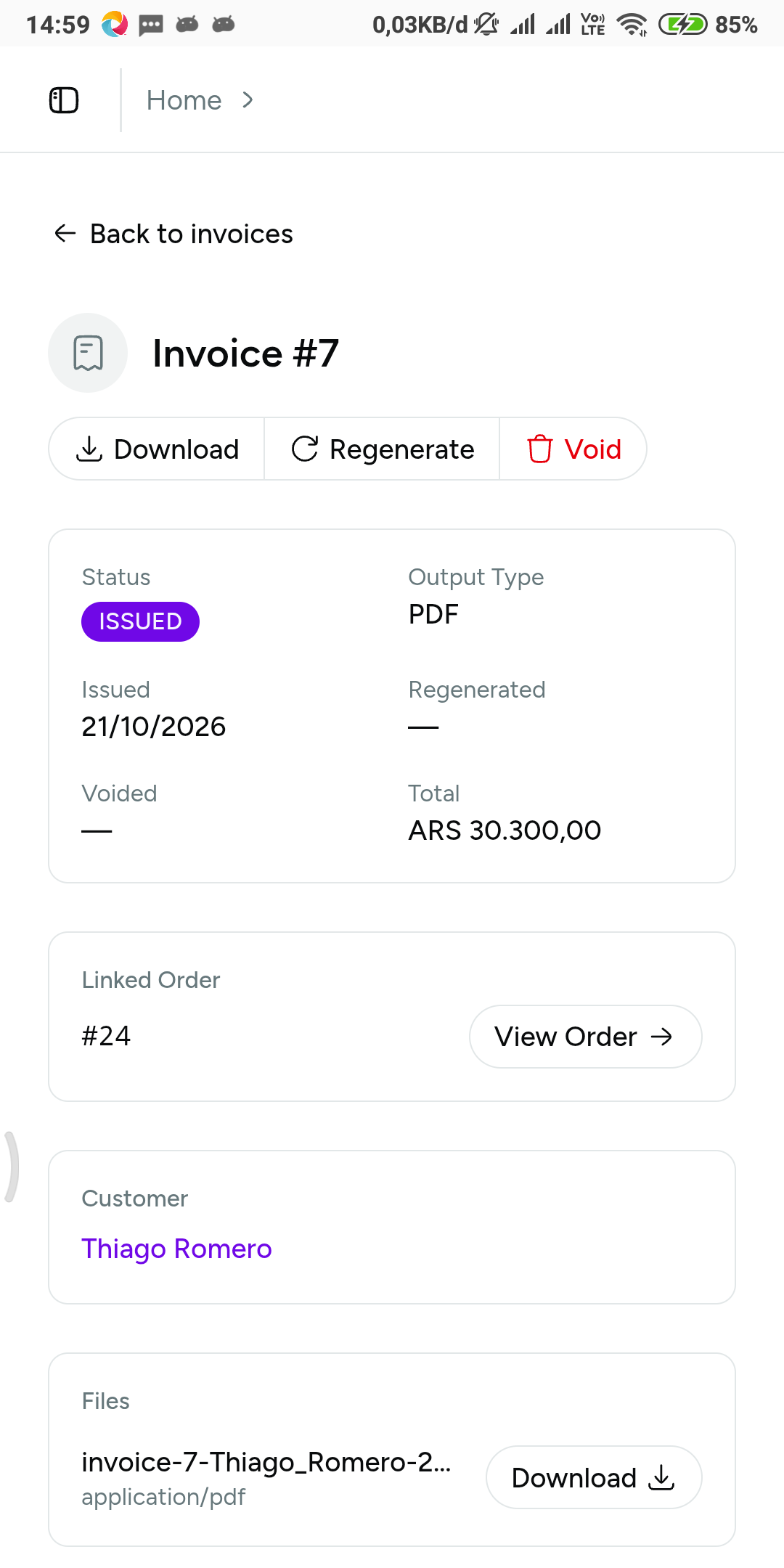 Everything a customer could ever question is on one screen: number, links, total, status — and the files ready to download.
Payment lives on the order, not the invoice
Goods and money run on different clocks: an order can be delivered while its payment is pending, or refunded long after it was completed. Vio keeps both answers as separate fields on the order record:
- Fulfilment status — pending, processing, shipped, delivered, completed, or cancelled: where are the goods?
- Payment status — unpaid, pending, paid, refunded, or failed: where is the money?
- Payment method — cash, bank transfer, credit/debit card, e-wallet, check, or other.
- Date paid — recorded when the money is in.
That separation is what turns “who hasn’t paid me yet?” from an afternoon of scrolling into a filter on the order list. And every invoice links back to its source order, so one hop connects document and transaction.
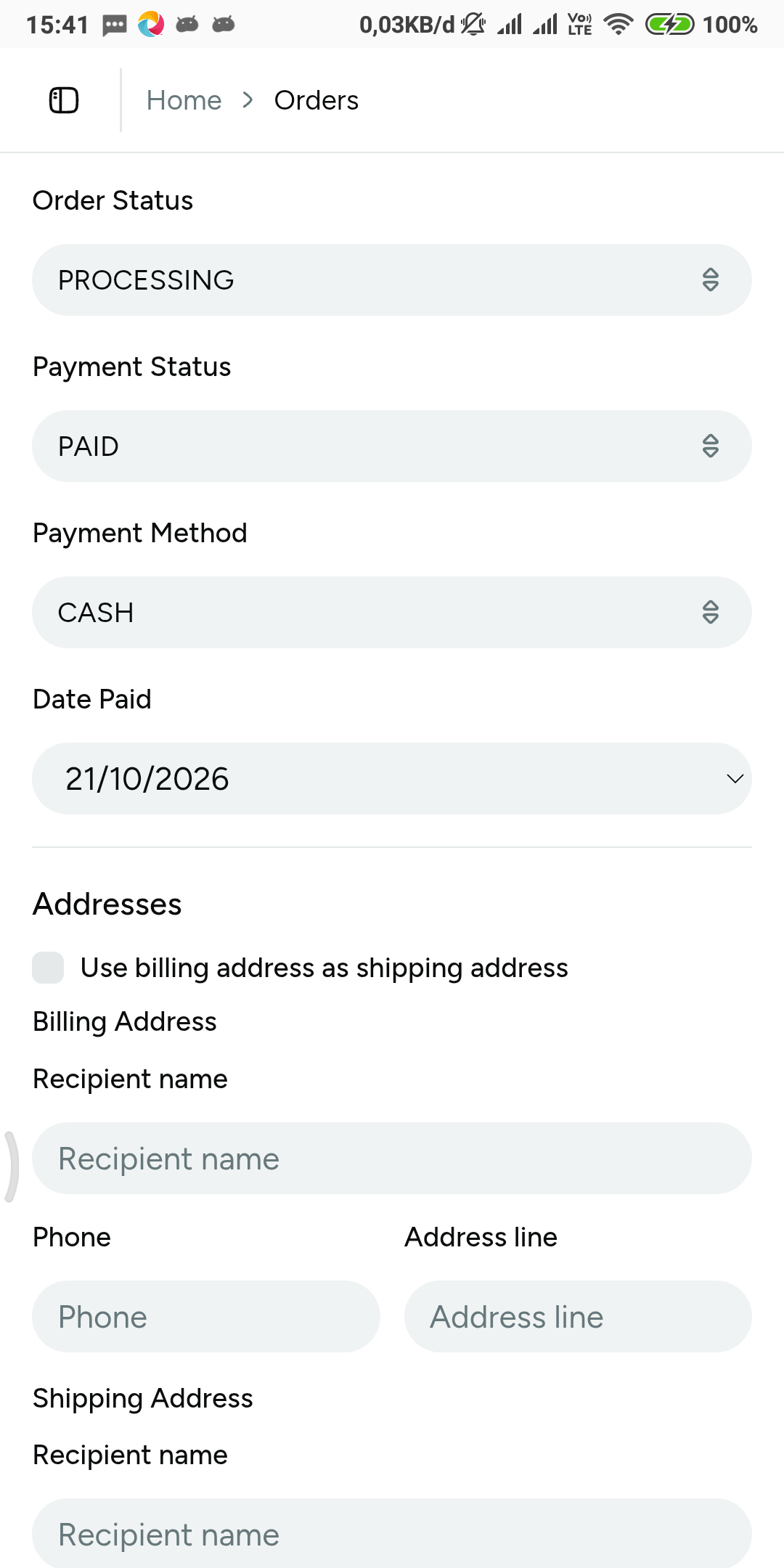 “Paid” is a field on the order — recorded with method and date, independent of where fulfilment has got to.
The full run-through: invoice → send → paid
If the sale isn’t recorded yet, create the order first — everything below hangs off that record. Then the whole loop, at speed:
- Open the fulfilled order and check it: customer, line items, discount, shipping, total. The invoice will follow exactly what’s on the order.
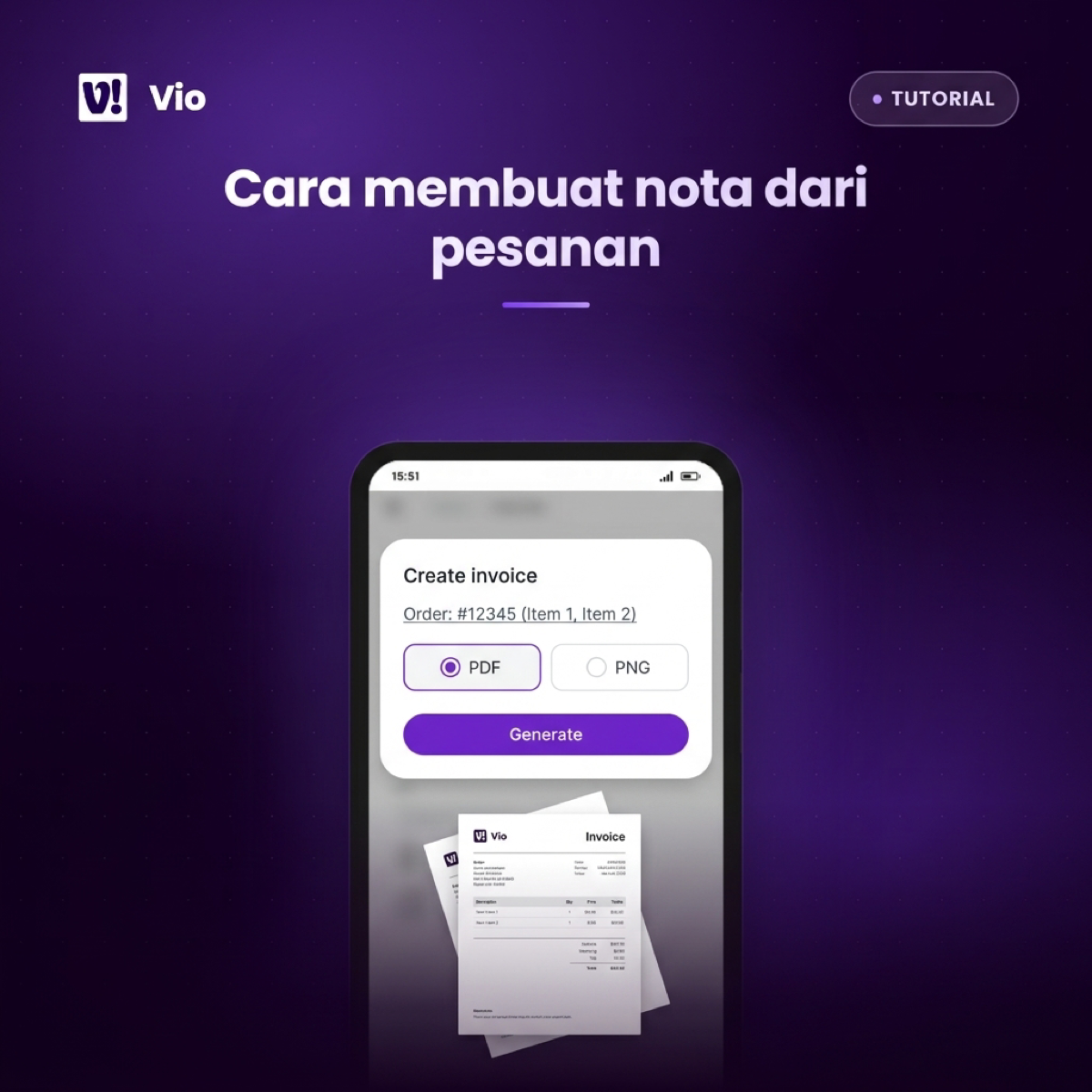
- Run the action to generate the invoice from the order and choose the output type — PDF to print or attach, PNG to drop into chat.
- Download the file. A single file comes down directly; if the invoice already has more than one, pick the one you need.
- Send it yourself. Attach the PDF or drop the PNG into the customer conversation you already use. Vio does not deliver anything to your customers for you; the file is yours to hand over.
- When the money arrives, open the order and set the payment status to Paid, recording the method and the date paid — or keep it pending while you’re watching a transfer, failed or refunded if the money comes back.
- At month-end, filter twice: invoices by status for documents that stand, orders by payment status for who still owes you.
Six steps, and the only thing your memory is still holding at the end is the customer’s name.
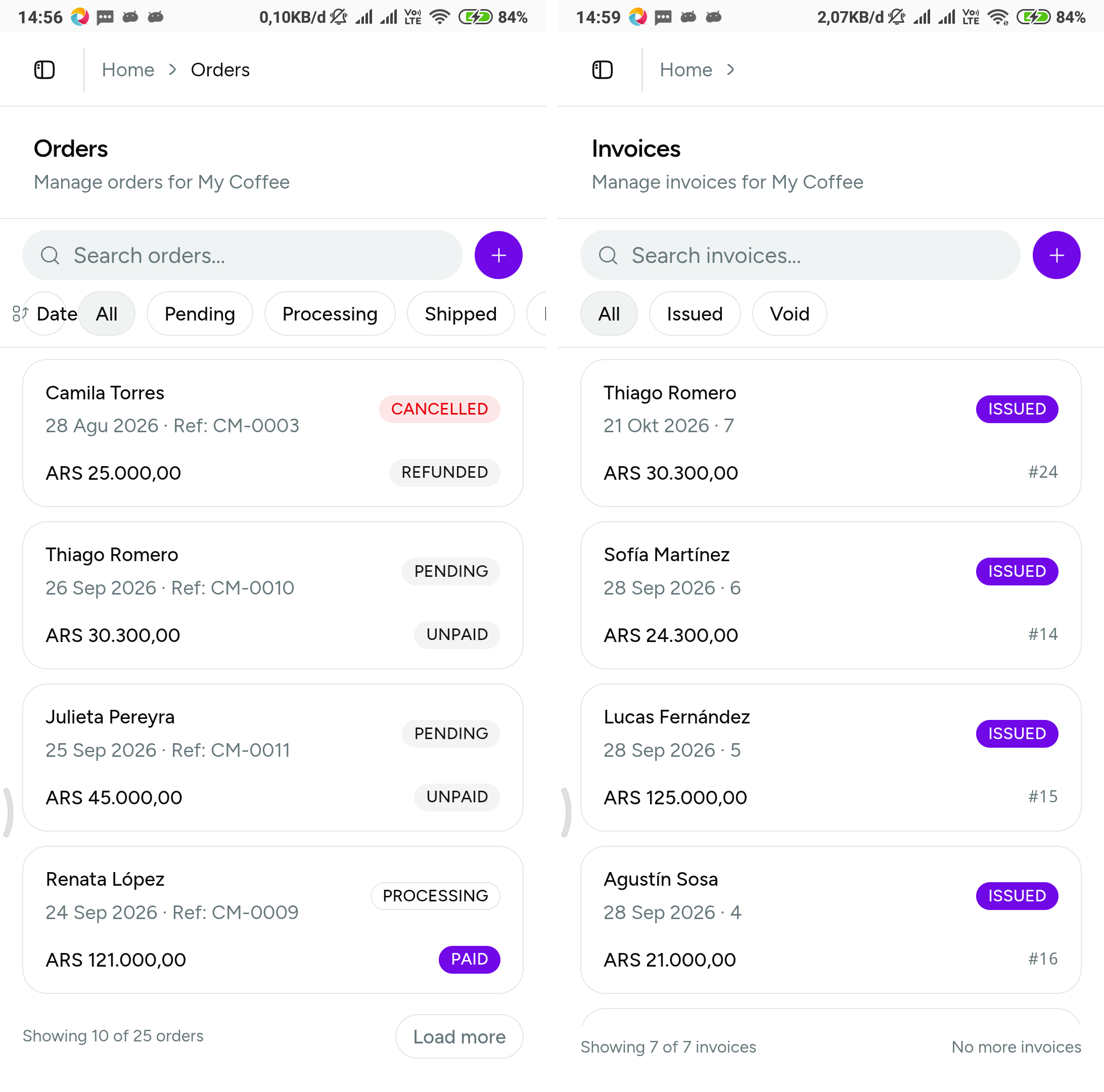 “Which invoices are still valid?” and “who hasn’t paid?” are filter queries now — not recollections.
The chat version: ask → act → verify
Steps 2 and 5 don’t need the screens. Your assistant — in the web app, the Android app, or a connected WhatsApp or Telegram channel — works on the same orders and invoices, and can draft an invoice from an order and act on order records. The pattern, twice:
“Draft an invoice for Bu Ratna’s last order, as PDF.”
Then verify: open the invoice, check the number, its links, the total and currency, and download the file. One message did the typing; the check confirms the order behind it is the right one.
“Bu Ratna paid her last order — bank transfer, today. Record it.”
Then verify: open the order and read back payment status, method, and date. That’s the whole trick: a conversation happens, and it becomes a workspace update without leaving the thread.
Three honest caveats. First, delivery stays manual — the assistant drafts and records, but the file goes to the customer from your hands. Second, what the assistant can actually do depends on the skills you switch on for it — if something you asked for doesn’t get done, fix the configuration, not the phrasing. Third, one assistant per channel, whether WhatsApp (paired by QR) or Telegram (a bot token) — and the assistant works only inside your workspace, reading and writing the same records you would open yourself. Channel setup is in how to connect Vio to WhatsApp; a full working day in chat is in run your back office from WhatsApp.
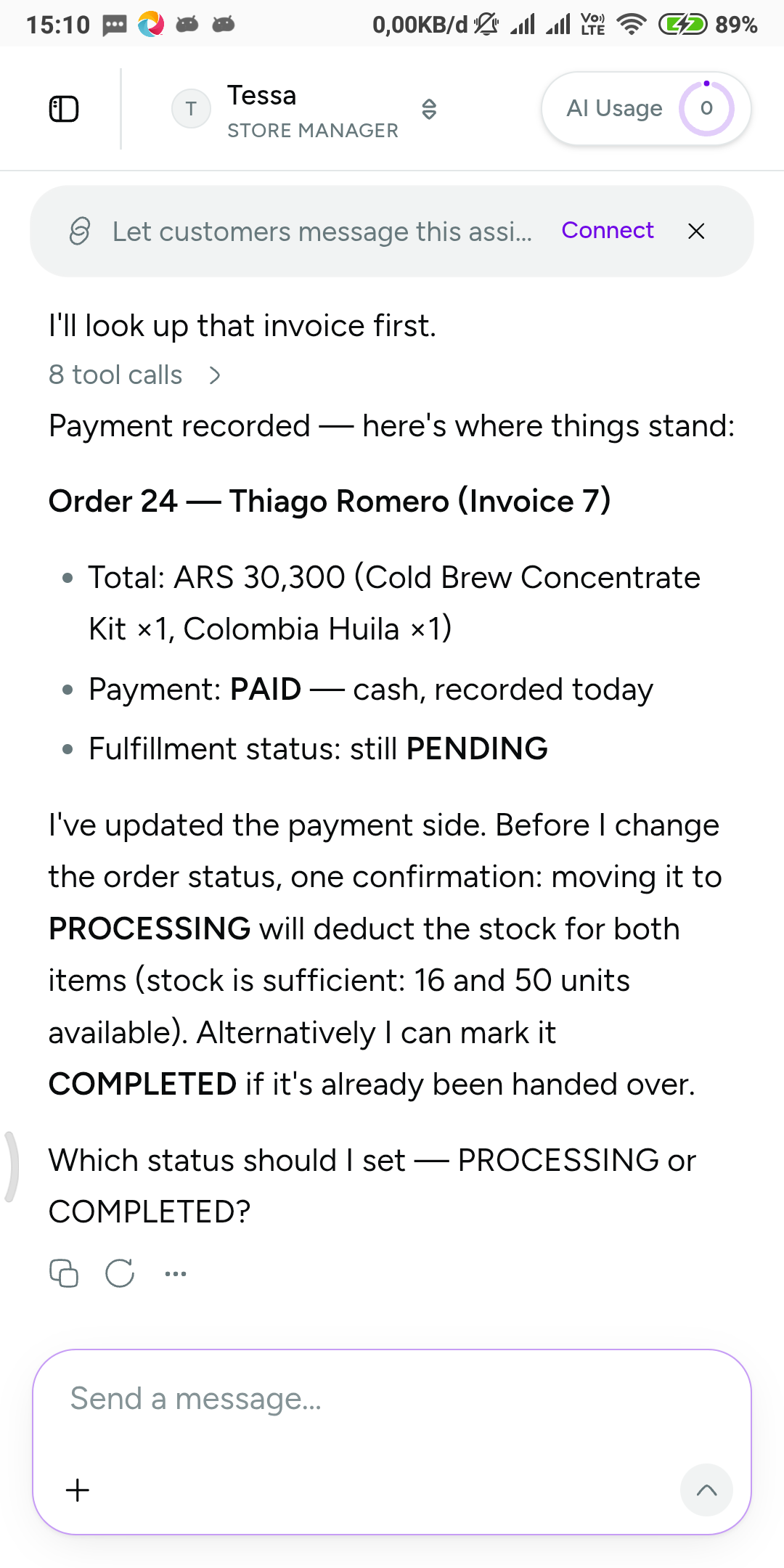 The customer’s payment message goes one way; your assistant works the other — and the order record closes the loop.
The limits, so there are no surprises
- Vio never talks to your customers. No automatic invoice sending, no auto-replies — it is a back office, not a customer-facing chatbot, POS, or support desk.
- The assistant acts within its skills — invoice drafting and order updates included, nothing outside them.
- It’s not accounting or tax advice. Vio keeps the records; what you file, and how, stays your judgment (or your accountant’s).
- Assistant chat runs on a daily AI usage budget: a per-workspace meter shown as a percentage — warning at 80%, hard stop at 100% until it resets.
Frequently asked questions
Can Vio send the invoice to my customer automatically?
No — and it’s not built to. Vio generates the file and keeps the record; you send the PDF or PNG yourself, through whatever channel you already use with customers. The assistant chats with you, not with them.
Is payment status tracked on the invoice or the order?
On the order. An invoice carries only two statuses — Issued or Void — because it describes a document. Payment status (unpaid, pending, paid, refunded, failed), method, and date paid are fields on the order — the transaction the money belongs to.
Should I send PDF or PNG?
PDF prints or attaches as a formal document; PNG opens anywhere in chat as an image. When an invoice has more than one file, download whichever one you need.
Can the assistant mark an order as paid?
Ask it to record the payment update on the order, as long as the assistant’s enabled skills cover that job. Then verify: status, method, date. One message, one check.
I sent the invoice, then the order changed. What now?
Correct the order, then regenerate the invoice — the new document follows the corrected items and totals. If the version you already sent shouldn’t stand, mark it Void.
Sent is a file. Paid is a field. Neither is a memory.
- The invoice carries its own record — number, linked order, linked customer, total, currency — with a simple Issued or Void status.
- Format follows delivery — PDF for print and attachment, PNG for chat — and you download the exact file you need.
- Payment stays on the order — status, method, and date, tracked separately from fulfilment.
- Chat can run the loop — ask the assistant to draft or record, then verify against the linked records before you call it done.
The next time a customer asks for a copy, it’s a search, a download, and a send. And “who owes me money?” becomes a filter, not a feeling.


0 Comments
Join the conversation