

Telegram is arguably the fastest text-first interface to your back office. It is light, it is already on your phone, and it is pure conversation — which makes it a natural home for a business assistant. Connect a Telegram AI assistant to Vio and the assistant you configured in your workspace comes with it: the same persona, the same skills, and the same access to your customers, products, orders, invoices, and analytics.
This guide walks through both halves of the setup: creating the bot in BotFather, then connecting it to your Vio assistant.
One framing note before we start: the bot you are about to build is your route to your own assistant. Vio is a back office, not a customer-facing chatbot, POS, or support desk. You talk to the bot; the bot talks to your workspace.
What you need before you start
- A Vio workspace with at least one assistant configured.
- Admin rights in that workspace — creating channels is admin-only.
- A Telegram account and the Telegram app on your phone or desktop.
- A safe place to store a credential — a password manager is ideal.
If you want the general walkthrough first, here is how to connect a channel to your assistant in Vio. This post goes deep on the Telegram half: the bot, the token, and what to do when the token changes.
Part 1: create your bot in BotFather
BotFather is Telegram’s official tool for creating and managing bots, and it works exactly like a chat: you send it commands and it replies. Telegram’s own bots documentation explains the platform behind it — bots are special accounts that don’t need a phone number and are separate from your personal Telegram account.
Here is the flow, step by step:
- Open a chat with @BotFather. Search for
BotFatherinside Telegram — the official account is@BotFather— or open t.me/BotFather. - Send the command
/newbot. BotFather starts a short setup conversation. - Choose a display name. This is what people see in their chat list — for example, “Raju Store Admin”. It is just a label, so make it recognisable to you.
- Choose a bot username ending in “bot”. Telegram requires bot usernames to end in
bot, like@rajustorebot. It has to be unique, so expect a few tries if your first pick is taken. - Copy the HTTP API token. BotFather immediately replies with a token that looks something like
123456789:AAHcqnylNgqBn3uT1z0abcDEFghi. This token authenticates the bot against Telegram’s Bot API.
That token is the one thing you need from BotFather. Save it somewhere secure before you leave the chat — the next section shows where it goes.
Part 2: connect the bot to your Vio assistant
BotFather created the bot’s identity. Now you bind that identity to an assistant in Vio, turning it into a working Telegram AI assistant backed by your workspace data.
- Sign in to Vio — web or Android — and open Channels in your workspace.
- Create a new channel.
- Select the Assistant this channel belongs to. Each channel is bound to one assistant, so choose deliberately.
- Set the Channel type to Telegram.
- Paste your BotFather bot token into the token field.
- Create the channel. It appears in your list with a live status badge.
No phone pairing is involved on Telegram — the channel runs on the bot and its token, which you created in Part 1.
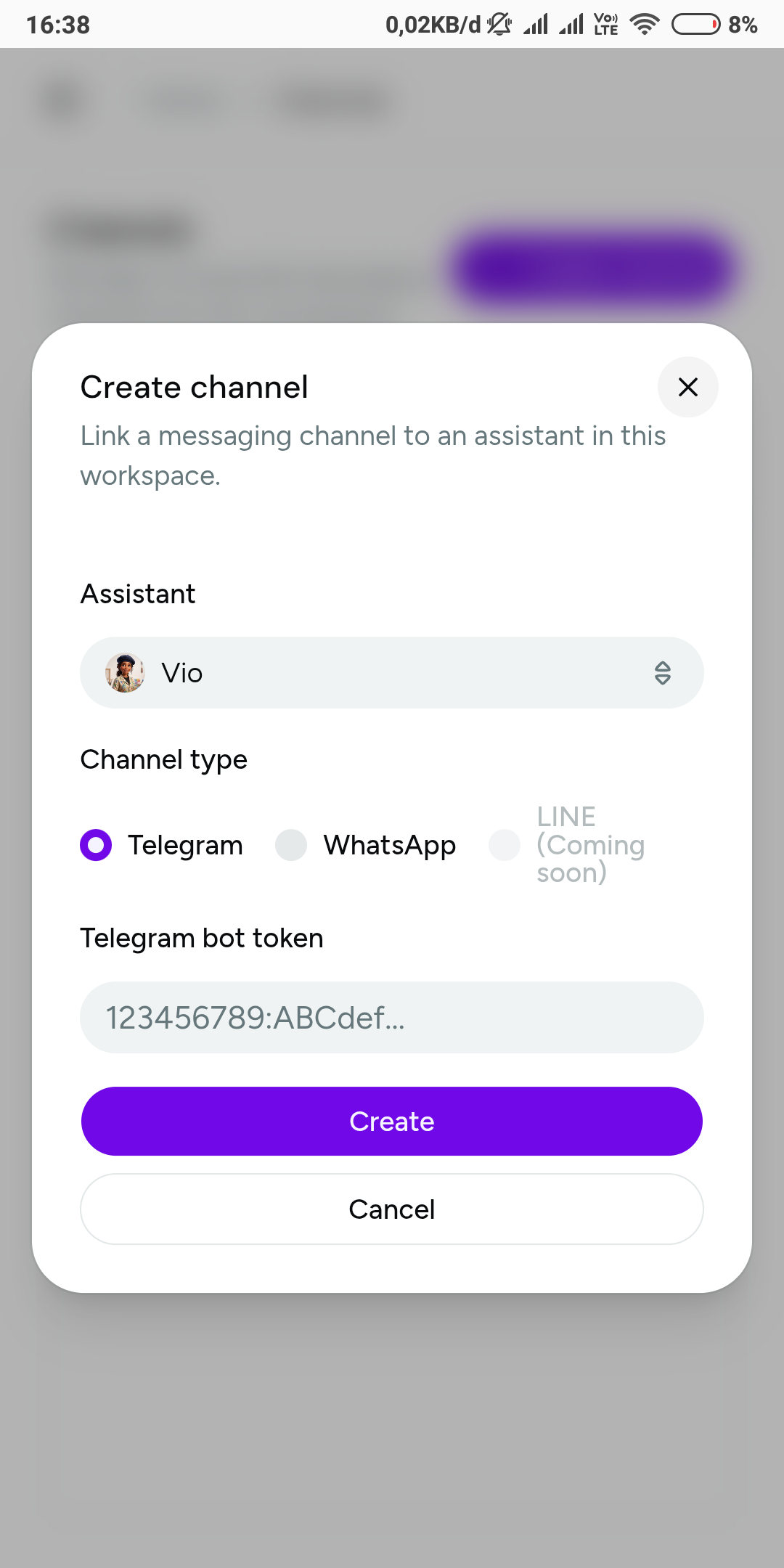 The Create channel dialog: assistant, channel type Telegram, and the token field. The visible “token” is just the field’s example placeholder.
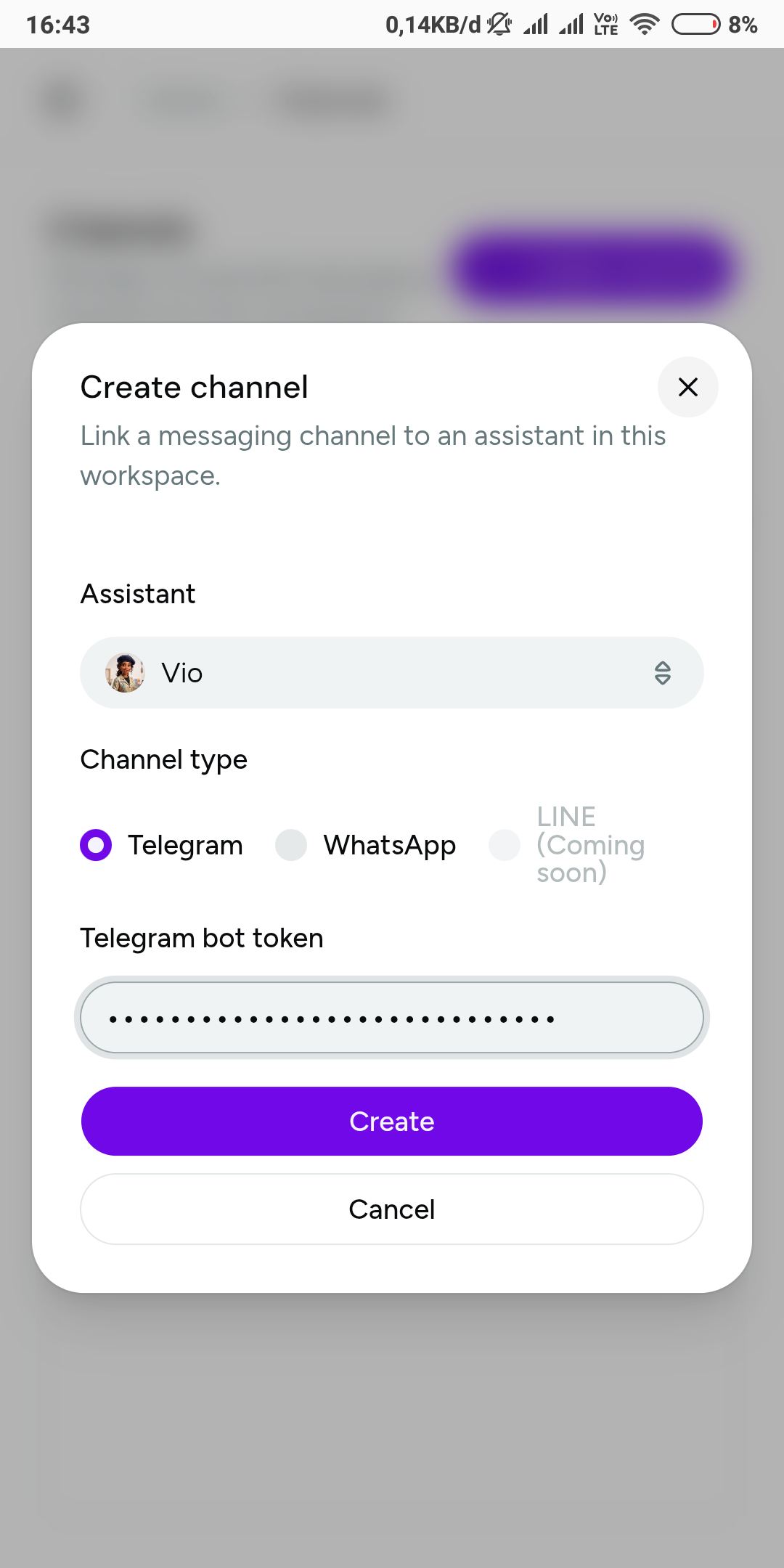 Once pasted, the field masks your token — no credential sits in plain text on screen while you work.
Test your Telegram AI assistant
Time to say hello to your own back office.
- Find your bot in Telegram by its username, or open its
t.me/<yourbotusername>link. - Send the first message. Telegram bots cannot start conversations — you have to message them first. Send “hi” and let the assistant introduce itself.
- Ask for something real: “What sold best this month?”, “Look up today’s pending orders”, or “Add a new product called Keripik with a price of 15,000”. The assistant works on the same records you see in the web and Android apps — conversation on Telegram, action in the workspace.
- Check the channel’s status badge in Vio — it should still show as live after the exchange.
If the bot stays silent, re-paste the token (a workspace admin can edit it from the channel view), confirm the assistant attached to the channel has the skills you expect, and make sure you are messaging the right bot username.
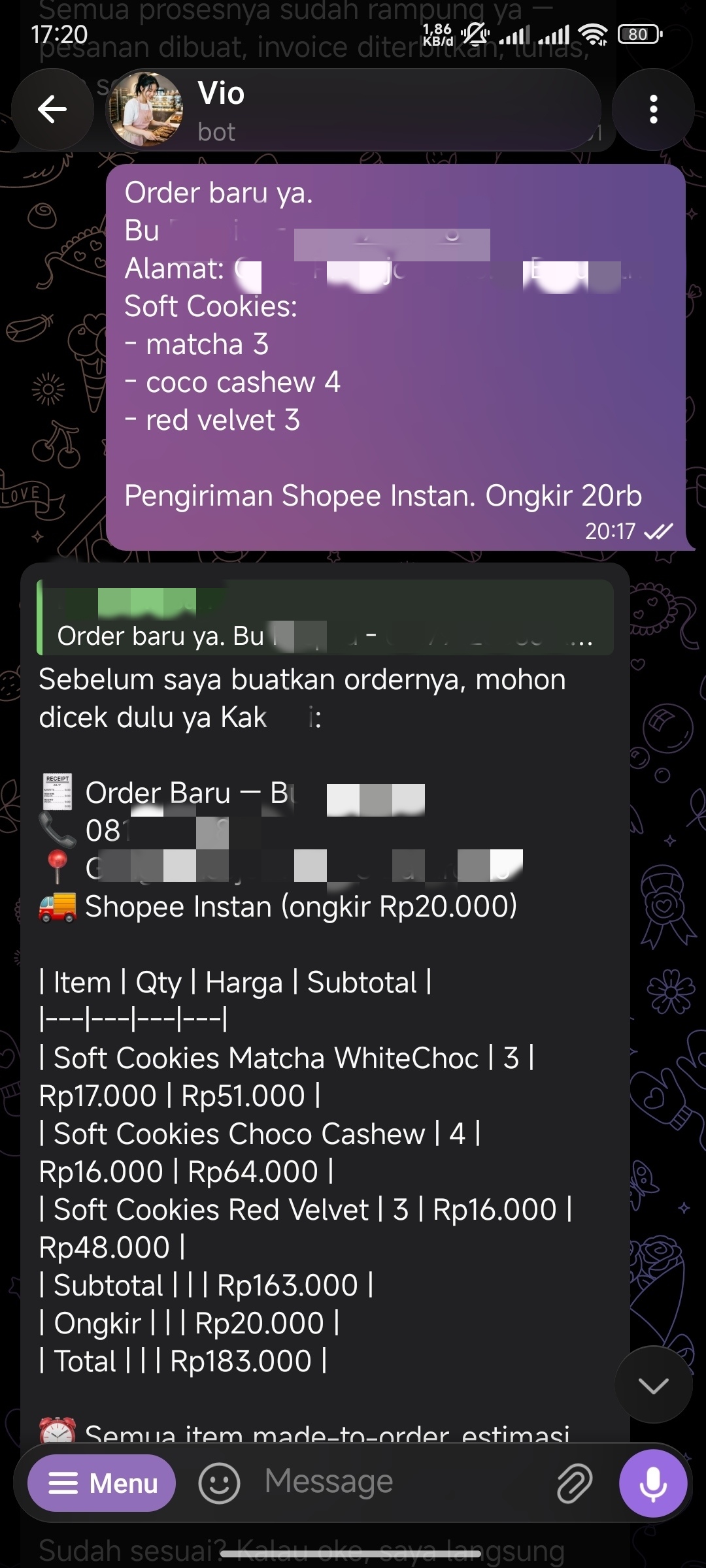 A first real exchange: the owner sends an order, and the assistant checks it against the catalog and returns a complete draft before anything is created. Customer details are pixelated.
Rotating or editing your bot token later
Two situations call for a new token:
- The token leaked. You pasted it into a group chat, a screenshot escaped, or someone who shouldn’t have it now does.
- You recreated the bot. New bot, new username, brand-new token — the old one is worthless to Vio.
The fix has two moves, in this order:
- In BotFather: revoke or replace the token. Telegram’s documentation confirms a bot’s token can be revoked at any time via @BotFather, and a fresh one issued.
- In Vio: open the channel and edit the bot token. The Telegram bot token is editable by a workspace admin directly from the channel view — that is the rotation path.
Paste the new token, save, and send the bot one test message. Done.
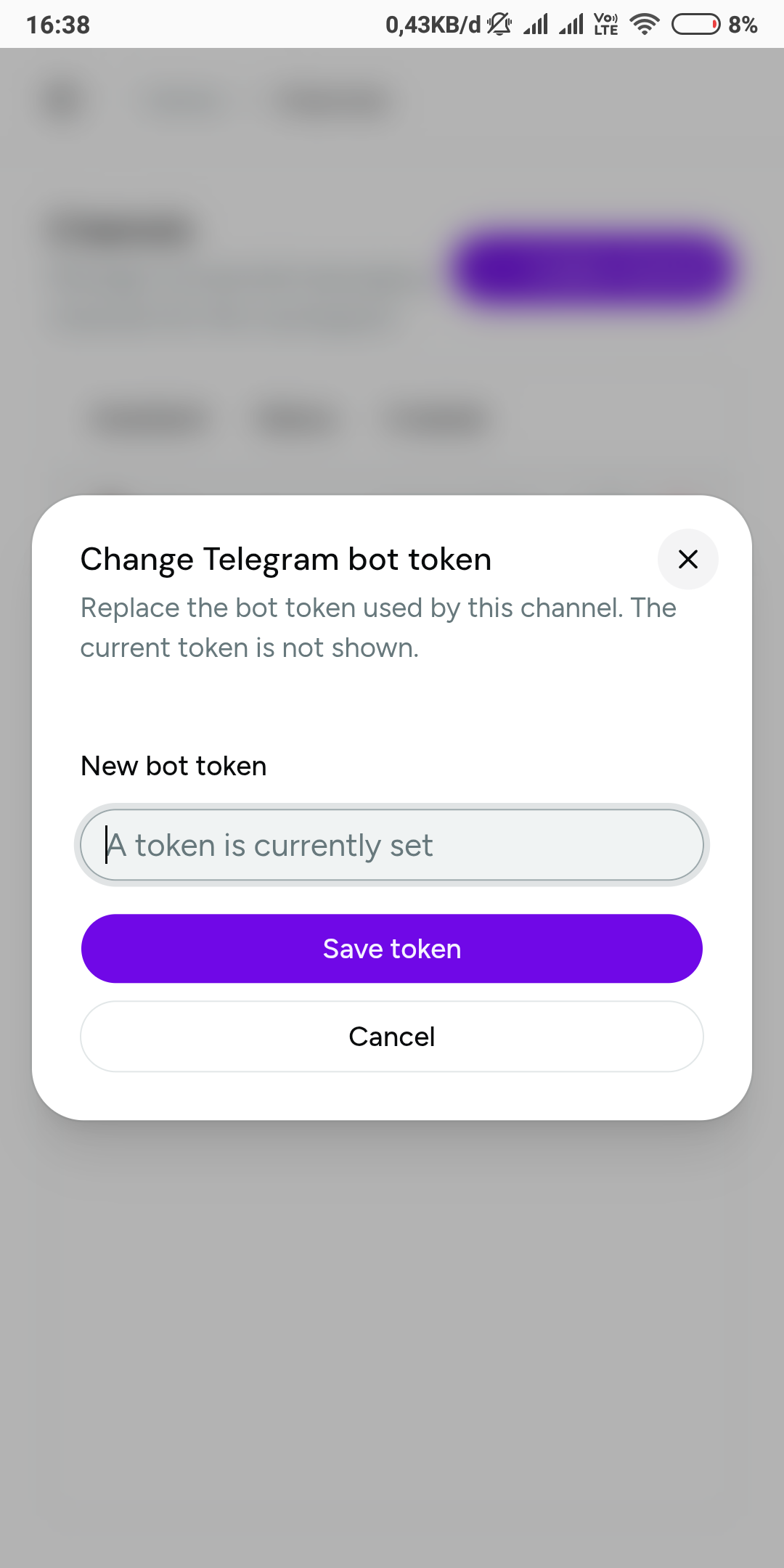 Token rotation in Vio: the current token is never displayed, and an admin pastes a new one and saves — no need to recreate the channel.
One assistant per channel: planning multiple bots
Every channel in Vio is bound to one assistant, and a workspace can run multiple assistants. If you want to separate roles — a store-management assistant for daily operations, a different assistant for another job — create a bot per assistant and a channel per bot. Give each bot a name that tells you which assistant sits behind it, and manage them all from the same channels view, where you can also delete channels you no longer need.
One more planning note: your assistant’s AI usage budget is a daily budget measured per workspace. Asking over Telegram instead of the app doesn’t create a separate allowance — it is the same assistant with the same budget, just a shorter path to it.
Security basics: treat the token like a password
Telegram’s own docs put it bluntly: everyone who has your token has full control over your bot. So:
- Store the token in a password manager or another secure place.
- Never paste it into chats, posts, or screenshots — screenshots of a token are a leak.
- Share it only with the workspace admin who manages the channel, only when needed.
- Rotate it the moment you suspect it leaked. Rotation is quick (see above), and regret is slow.
Common mistakes
- Pasting an old token after recreating the bot. A deleted or replaced bot’s token will not work. Always paste the token BotFather just gave you.
- Confusing the display name with the username. The display name is the label in chats; the username is the unique handle ending in
bot. You can share the handle with yourself; nobody needs the token. - Waiting for the bot to write first. Bots can’t start conversations on Telegram. Message it once after connecting.
- Truncating the token when copying. Tokens look messy and end on a random string. Copy the whole thing — an incomplete paste is the classic silent failure.
- Trying to create the channel as a non-admin. Channel creation is admin-only, like other workspace settings. Ask your admin.
- Handing the bot to customers. This is your assistant, working on your records. Vio is back office — the bot is how you reach it.
Frequently asked questions
Do I need to write any code?
No. BotFather creates the bot through a chat, and the bot works by authenticating to Telegram’s Bot API with the token you paste into Vio. Vio connects to that bot for you — there is no server to rent and no script to run.
Is this Telegram assistant for my customers?
No. Vio is an AI back office, not a customer-facing chatbot. The bot connects you — the owner — to your own workspace assistant, wherever you happen to be.
Where do I get the BotFather bot token?
Message @BotFather on Telegram, send /newbot, choose a name and a username ending in bot, and BotFather replies with the HTTP API token. The official bot docs cover the same flow.
Can I connect more than one Telegram bot to Vio?
Yes. A workspace can have multiple channels, and each channel is bound to one assistant. Create a bot per assistant, connect each one as its own channel, and manage them from the same view.
What happens when I delete the channel in Vio?
Deleting a channel removes that route to your assistant, and admins can delete channels from the channel view. The assistant itself stays in your workspace, reachable from the web app, the Android app, or another channel.
Does using Telegram change my AI usage budget?
No. The daily AI usage budget is measured per workspace, so the same budget applies whether you message the assistant from Telegram, the web app, or Android.
Conclusion: two small moves, one connected assistant
Setting up a Telegram bot for Vio comes down to two parts: BotFather issues your bot’s identity and token, and the Vio channel binds that token to one assistant. After that, your customers, products, orders, and numbers are one message away — in whichever app you already have open.
Build the bot, paste the token, and send your assistant its first “hi”.
0 Comments
Join the conversation