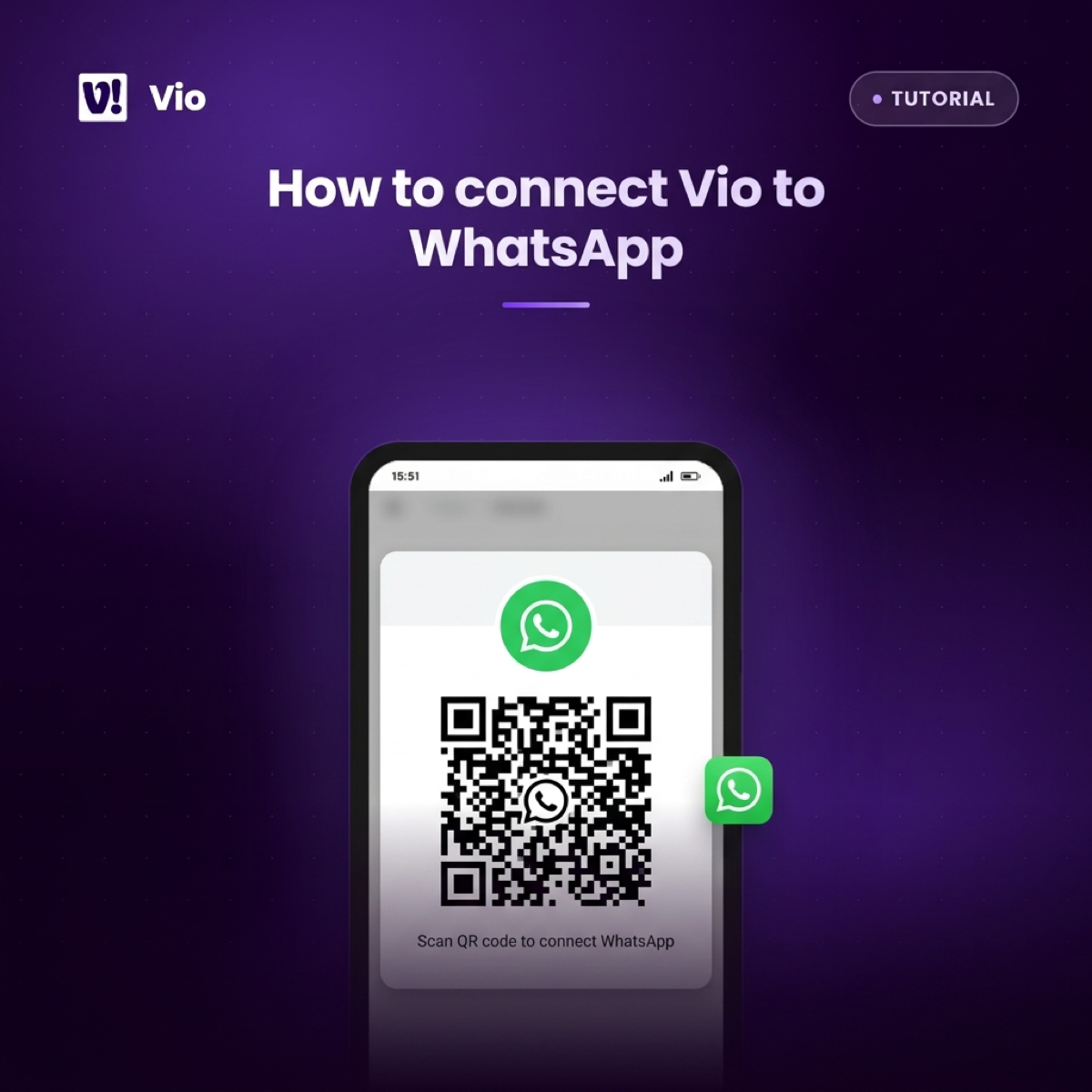

Your assistant lives inside the Vio app. Your day, though, happens in WhatsApp — checking whether an order went out, chasing a supplier, wondering what sold this week while you’re away from your laptop.
Connecting Vio to WhatsApp closes that gap. You scan a QR code once, and the assistant in your workspace becomes reachable from the app you already keep open all day: a WhatsApp AI assistant that knows your business and can work with your real records.
One thing to be clear about before we start. This channel is for you, the owner, to message your own assistant — it is not a bot for your customers to talk to. Vio is a back office, not a customer-facing chatbot, POS, or support desk. The WhatsApp channel is simply the road from your phone to that back office.
This guide covers the whole pairing: what you need, the WhatsApp QR pairing step by step, what the connection status and linked number mean, and what to do when the link drops.
What you need before you start
Check off four things first:
- A Vio workspace — the container that holds your business data and assistants.
- Admin rights in that workspace — creating a channel is admin-only. If you’re a member, ask a workspace admin to do the pairing.
- A WhatsApp account on a phone you have with you — you’ll scan the pairing code with the WhatsApp app on that phone.
- An assistant already set up — every channel is bound to an assistant, so you’ll want one configured before you create the channel.
If the workspace or assistant isn’t ready yet, start with how to connect a channel to your assistant in Vio. That post covers the shared basics for any channel — creating it, attaching an assistant, and managing it from the channel list. This one goes deeper on the Vio WhatsApp channel specifically: the pairing itself, the statuses, and reconnecting.
How to connect Vio to WhatsApp, step by step
Pairing is a handful of clicks in your workspace and one scan on your phone:
- Open Channels in your workspace. Channel creation and management live in one admin view.
- Create a new channel and select the assistant it should be bound to. Each channel is bound to exactly one assistant — pick the one you want to reach from WhatsApp.
- Choose WhatsApp as the channel type. The pairing view opens with a QR code.
- Open WhatsApp on your phone and use its option to link a device — this gives you a camera scanner.
- Scan the QR code shown in the pairing view. The channel starts connecting.
- Watch the channel list. Once paired, the channel shows its connection status and the linked phone number.
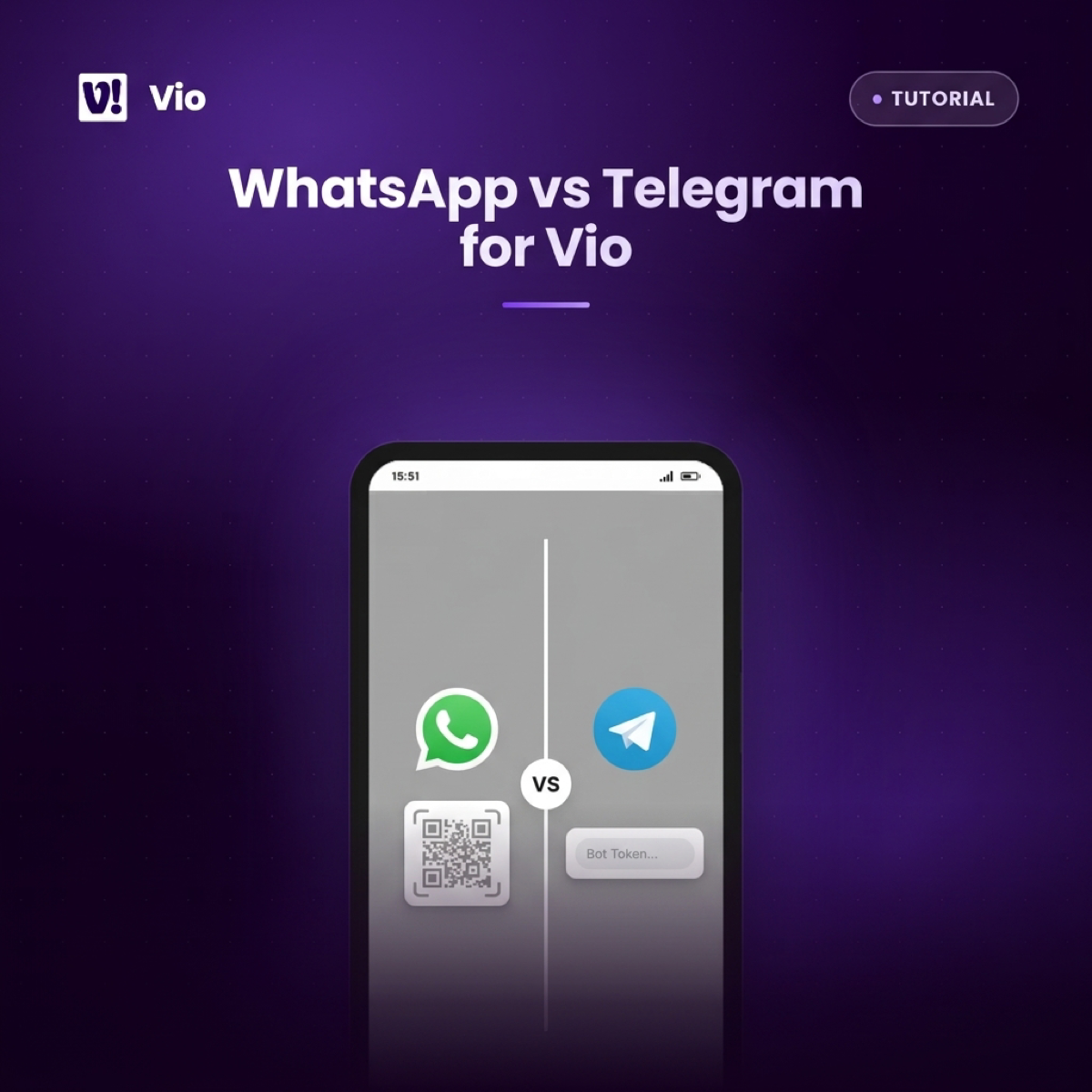
That’s it. WhatsApp needs no bot token and no developer setup — the QR code is the entire credential exchange. If you ever connect Telegram instead, that one uses a bot token; WhatsApp QR pairing is the simpler flow.
One caution while you’re in the pairing view: the QR payload is treated as a sensitive credential and is only ever shown inside the admin-facing view. Treat it like a password — don’t screenshot it or send it to anyone.
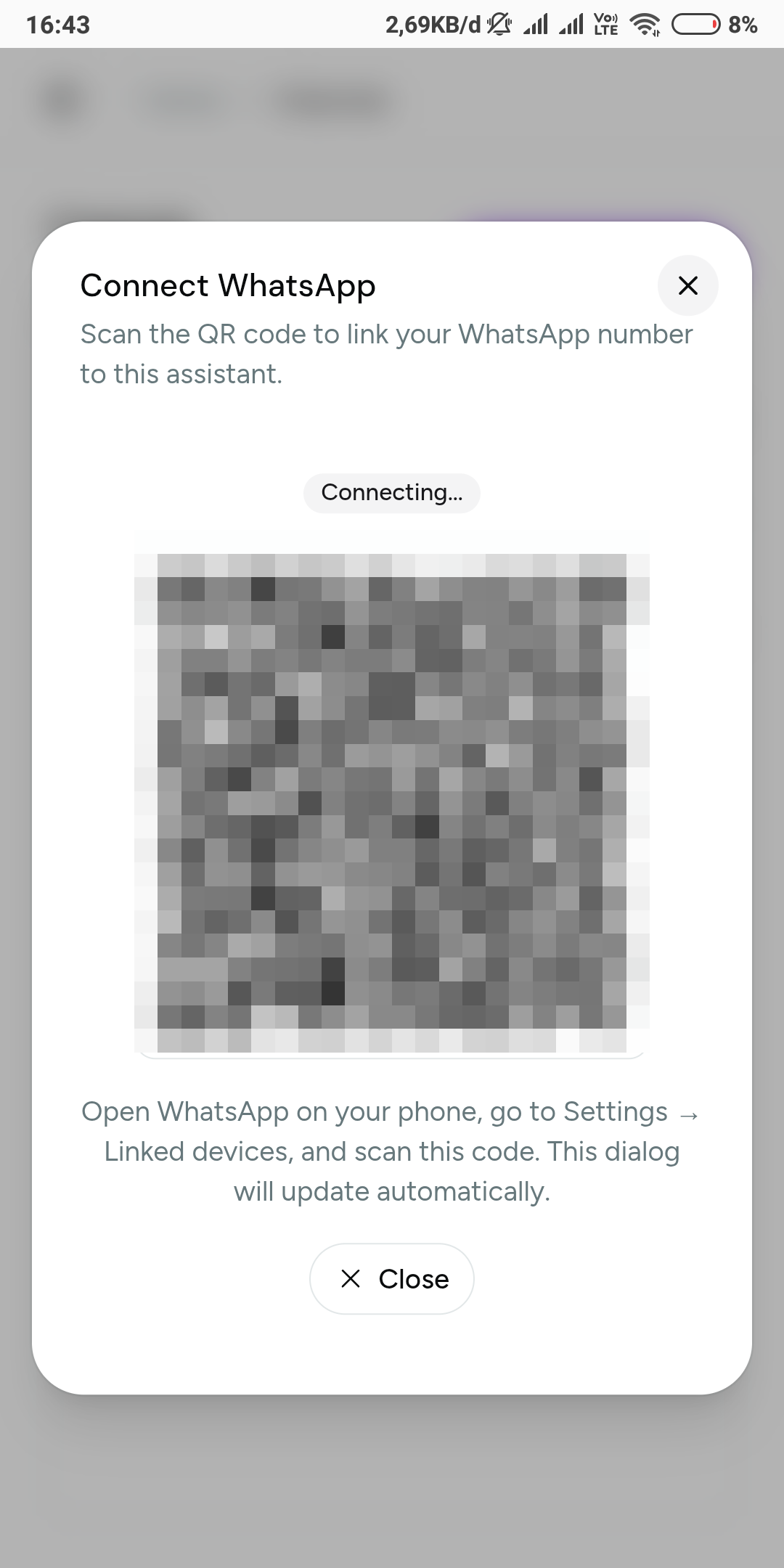 The pairing view while a channel is connecting. The QR code is pixelated here on purpose — treat a live pairing code like a password, exactly as above.
Reading the connection status and the linked number
After the scan, your channel list tells you two things worth understanding.
The connection status shows where the pairing stands — still connecting, or connected. A channel can also end up disconnected later, and that same status is what tells you it’s time to act.
The linked phone number is the WhatsApp number that carries the channel. It’s shown right in the workspace, so you always know which phone identity is behind the connection. Check it immediately after pairing: the number you scanned with is the number now tied to your assistant. If you run more than one business — or more than one phone — this is the field that tells you which channel you’re actually looking at.
When WhatsApp disconnects, reconnect in place
Connections drop occasionally. When your WhatsApp channel shows it has disconnected — or is still stuck connecting — you don’t delete anything or start over.
Open the channel from your list and reopen the pairing view, then scan the new QR code with the WhatsApp app on the phone you want linked. The channel reconnects in place.
And if you close the pairing view while the channel is still connecting, nothing is lost: the channel keeps its status in the list, and you can reopen the view whenever you’re ready. Editing and deleting channels happens from that same view too, so everything about the connection lives in one screen.
One channel, one assistant: plan the pairing
Every channel in Vio is bound to one assistant. That’s a deliberate constraint, and it pays to plan before you scan anything.
A workspace can run multiple assistants, each with its own persona and skills. So instead of asking one assistant to be everything, you can split by purpose: the assistant that knows your daily store operations gets the WhatsApp channel, while a different assistant serves a different channel or stays in the app.
To plan, ask one question: which assistant do I actually want to talk to from my phone? That’s the one to attach to the WhatsApp channel. If you later want a second assistant reachable the same way, create a second channel — each gets its own pairing, status, and linked number.
What your assistant can do once it’s paired
With the connection live, you message your assistant the way you’d message a colleague, and it works on your workspace’s real records. Practical examples:
- Look up an order — check where an order stands without opening the app.
- Draft an invoice from an order — the invoice is generated from the order record, not retyped. New to that flow? See how to create an order in Vio.
- Ask about the business — questions about sales, customers, and products get answered from your own data.
- Create or update records from the conversation — a routine you do in chat can end up recorded in the workspace, like adding the customer from this tutorial.
Two honest limits to keep in mind. First, what your assistant can do depends on the skills enabled for it — the assistant is skill-driven, so a store-management setup behaves differently from a bare one. Second, your assistant is there to draft, look up, and act on your records — it doesn’t replace accounting, legal, or tax advice.
One more thing owners ask about: the daily AI usage budget is measured per workspace. Reaching the assistant from WhatsApp draws on the same budget as the app — the channel is a route, not a separate meter.
Common mistakes (and how to avoid them)
- Pairing with the wrong phone number. The number you scan with becomes the linked number. Glance at the workspace after pairing and confirm it’s the number you meant. If it’s wrong, reopen the pairing view with the right phone.
- Forgetting that channels are admin-only. A member who tries to create the channel won’t get far. Have a workspace admin do the pairing.
- Attaching the wrong assistant. The binding happens at creation. If the channel should serve a different assistant, manage it from the channel view — channels are editable and deletable there.
- Expecting a customer-facing bot. This is your line to your own assistant. Framing it as a support desk for customers is a category error — Vio is built as a back office.
Frequently asked questions
How do I connect Vio to WhatsApp?
An admin creates a WhatsApp channel in your Vio workspace, binds it to an assistant, and shows a QR code in the pairing view. You scan that code with the WhatsApp app on your phone, and the channel appears in your list with a connection status and the linked phone number.
Do I need WhatsApp Business or a bot token?
No. WhatsApp connects through QR pairing with the WhatsApp app on your phone — no bot token and no developer setup. Bot tokens belong to the Telegram channel type, not WhatsApp.
Who can create or manage the WhatsApp channel?
Admins only. Creating the channel, reopening the pairing view, editing channels, and deleting them all happen in the admin-facing channels view.
What happens when my WhatsApp channel disconnects?
The channel’s status changes in your workspace list. Reopen the pairing view from the channel and scan again — the channel reconnects in place, no need to delete and recreate it.
Can two WhatsApp channels use two different assistants?
Yes. Each channel is bound to one assistant, but a workspace can run multiple assistants and multiple channels — so different assistants can serve different channels and purposes.
Does it matter which phone I scan with?
Yes — that phone’s WhatsApp number becomes the linked number shown in your workspace. Scan with the phone you actually want carrying the connection.
Pair once, then work from wherever you are
Connecting Vio to WhatsApp is one scan — and after that, your back office travels with you. Pair with the phone you keep in your pocket, attach the assistant that knows your daily operations, and confirm the linked number in the channel list. When the connection drops, the same view that paired it brings it back.
Start with a workspace and an assistant, then connect your first channel:
0 Comments
Join the conversation