

A good online-shop order template always contains 6 things: buyer name, city/shipping address, item with its variant (size/colour), quantity, payment method, and notes. The three templates below cover all of them — copy them, paste them into WhatsApp Business as a quick reply, and every order starts arriving in the same tidy shape.
Unformatted buyer chats are the most expensive source of mistakes in a chat-run store: “the usual, love” can mean two different things in the buyer’s head and the admin’s. An order template removes the guessing — not because buyers suddenly become tidy, but because you laid the track for them.
This post is the full kit: copy-ready templates for three kinds of shops, how to wire them into WhatsApp Business, confirmation reply templates, and how to make sure a formatted order actually lands in your log (not just gets a reply).
What every order template must contain
Before the industry-specific versions, the skeleton every format shares:
| Field | Why it’s mandatory |
|---|---|
| Name + city | Kills mis-pasted addresses; city = instant shipping check |
| Item + variant (size/colour/flavour) | The number-one wrong-shipment hole |
| Quantity | Looks trivial; most often mis-heard when it’s busy |
| Payment method (transfer/COD/QRIS) | Decides your next obligation: process or chase |
| Notes | Room for what doesn’t fit a column — “not spicy”, “gift wrap” |
| Order code (you fill it) | Conversation anchor: without one, every “which order?” ends in debate |
It doesn’t have to be rigid — if a buyer refuses to fill it, you translate their message into the format in your log. The thing being tidied is your record, not your customer.
Template 1 — Fashion & apparel (sizes/colours)
ORDER — [Shop name]
Name    :
City    :
Address : (for shipping)
Item    :
Variant : size / colour
Qty     :
Payment : transfer / COD / QRIS
Notes   :

Order code (shop fills): F-____
Fashion extra: encourage buyers to add height/weight in notes when unsure of size — that one small field prevents the most returns.
Template 2 — Food & beverage (pickup & pre-order)
ORDER — [Business name]
Name    :
Time    : pickup / delivery time, day …
Menu    :
Qty     :
Notes   : (spice level / no … / toppings)
Payment : upfront / deposit / COD
Contact : reachable number

Order code (kitchen fills): M-____
For F&B, the Time line is the star: an order without a time is a chaotic kitchen queue. Deposit-vs-paid goes in the Payment line so end-of-day recaps add up on their own.
Template 3 — General retail & COD
ORDER — [Shop name]
Name    :
City    :
Item    :
Qty     :
Payment : transfer / COD (shipping paid on delivery)
Notes   :

Order code (shop fills): G-____
COD versions demand one extra line in your own log: who pays shipping. A COD order without that settled is an argument with a delivery date.
Wiring the template into WhatsApp Business
- Open Settings → Business tools → Messaging → Reply messages in WhatsApp Business.
- Add a new entry with one of the templates above; give it a short shortcut like
/order. - When someone asks the price, send the template with one keystroke — before the deal, not after. A buyer who already paid won’t fill a form; a buyer still deciding will happily copy a format.
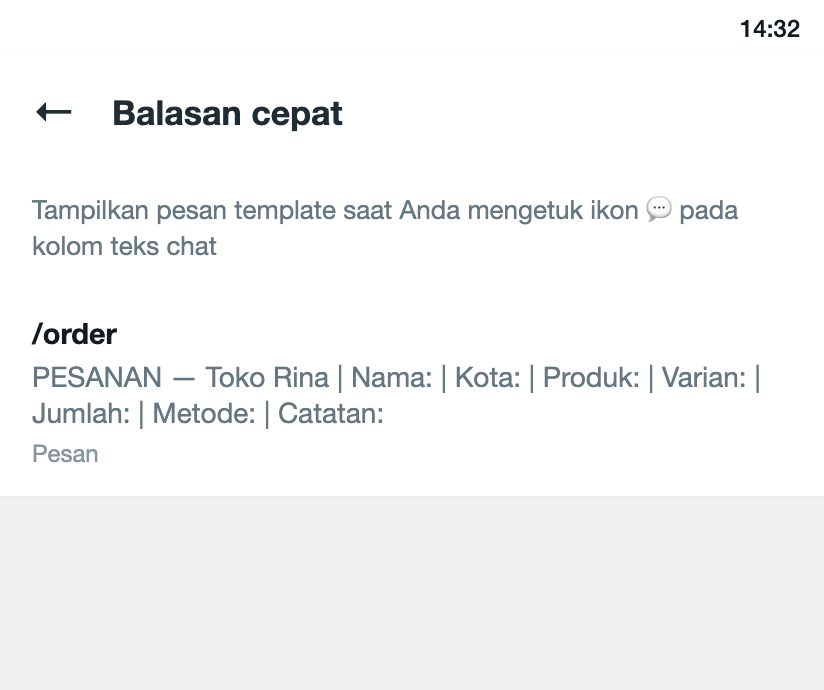 Illustration: one
/order shortcut — the template ships with a single keystroke every time someone asks the price.
(Not on WhatsApp Business yet? The app is free and official at business.whatsapp.com.)
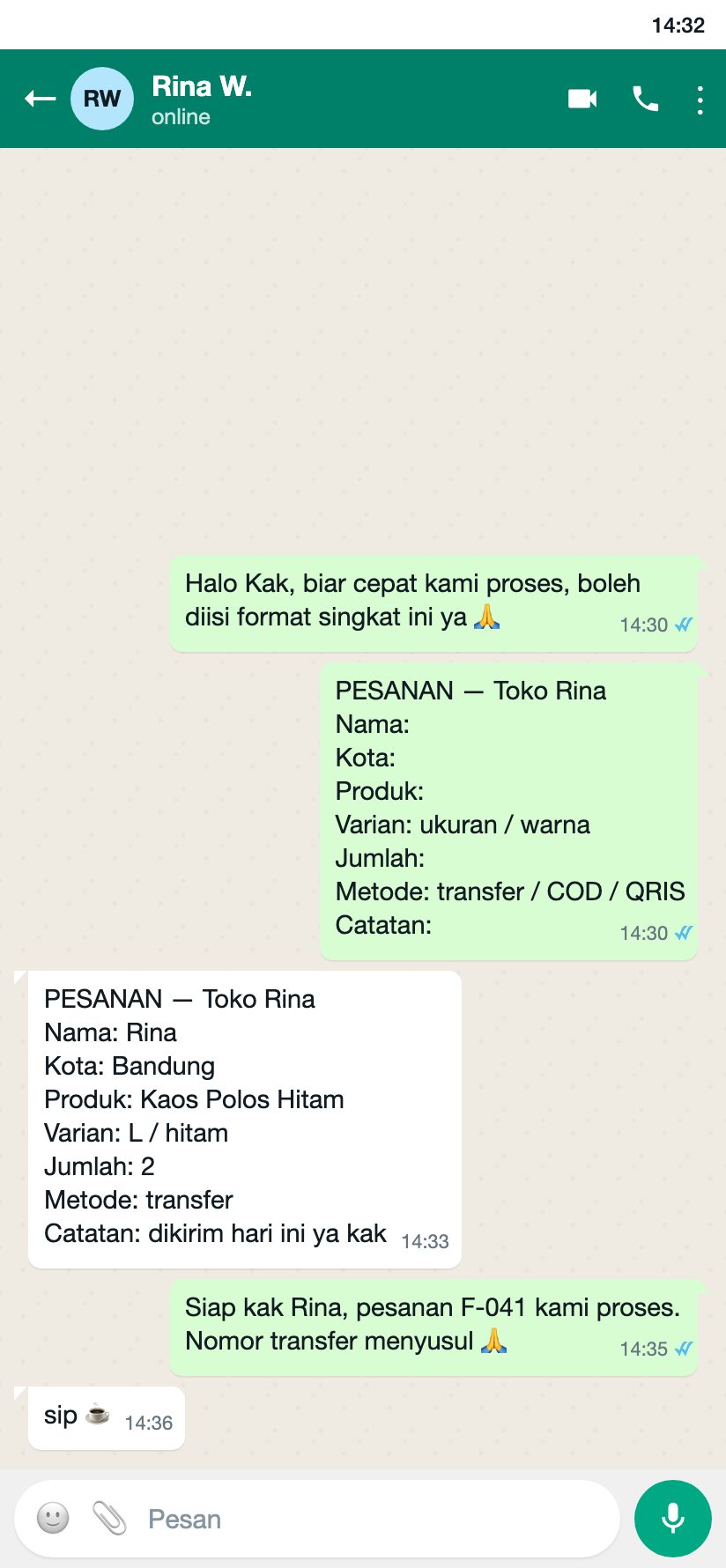 Illustration of the result: asked once, filled in neatly by the buyer, ready to move into the log — the columns already match from the start.
The next step is what separates tidy shops from messy ones: a completed format must move into one place of record the same day — the full rules for that are in how to record WhatsApp orders without missing one.
Recap version: the format for your own log
The chat templates above are for buyers. For your own recap (Sheets/notes), use one line per order that mirrors the same columns:
F-041 | Rina | Bandung | Black tee L | 2 | transfer | paid
A five-second row you can type while still replying to the chat — and it becomes your weekly sales recap without any retyping later.
Bonus: confirmation reply templates
An incoming order isn’t final until the buyer approves the summary. Two versions:
Fashion:
Hi [Name], confirming 🙏
2× Black Tee — L = Rp170,000
JNE REG shipping to Bandung: Rp15,000 (buyer pays)
Total: Rp185,000 → transfer to [bank/no].
Once paid, we process and send the tracking code. All correct?
F&B:
Hi [Name]! Order ready for 12:00:
2× Rendang Rice + 1× Iced Tea = Rp60,000
Packed separately. Pay upfront: QRIS/e-wallet [no].
Reply "ok" and we start cooking 🍳
This confirmation message keeps two things as one: what the buyer paid and what the shop logged. Once they say “ok”, the order should already be a row in your log.
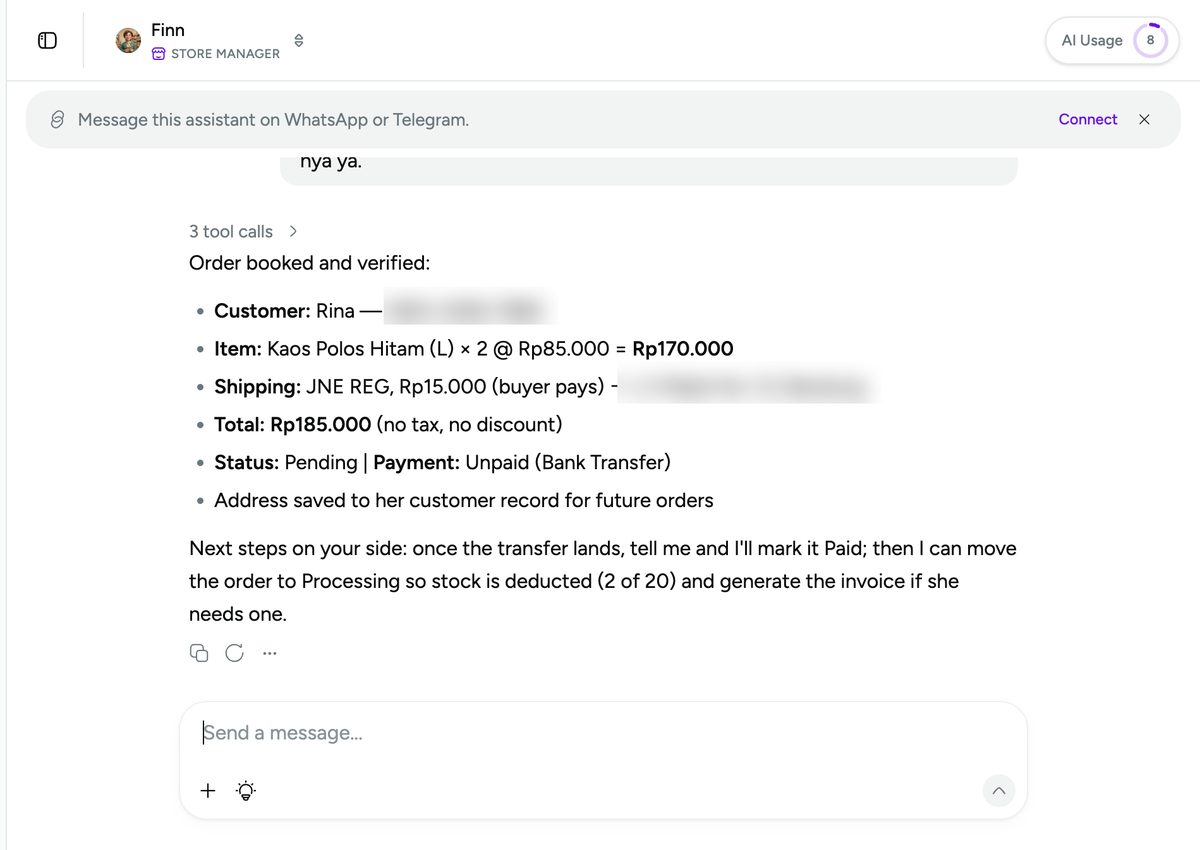 The confirmation message above, plus the order as logged after that chat was processed — same columns as this post’s templates, because the template is exactly what bridges them.
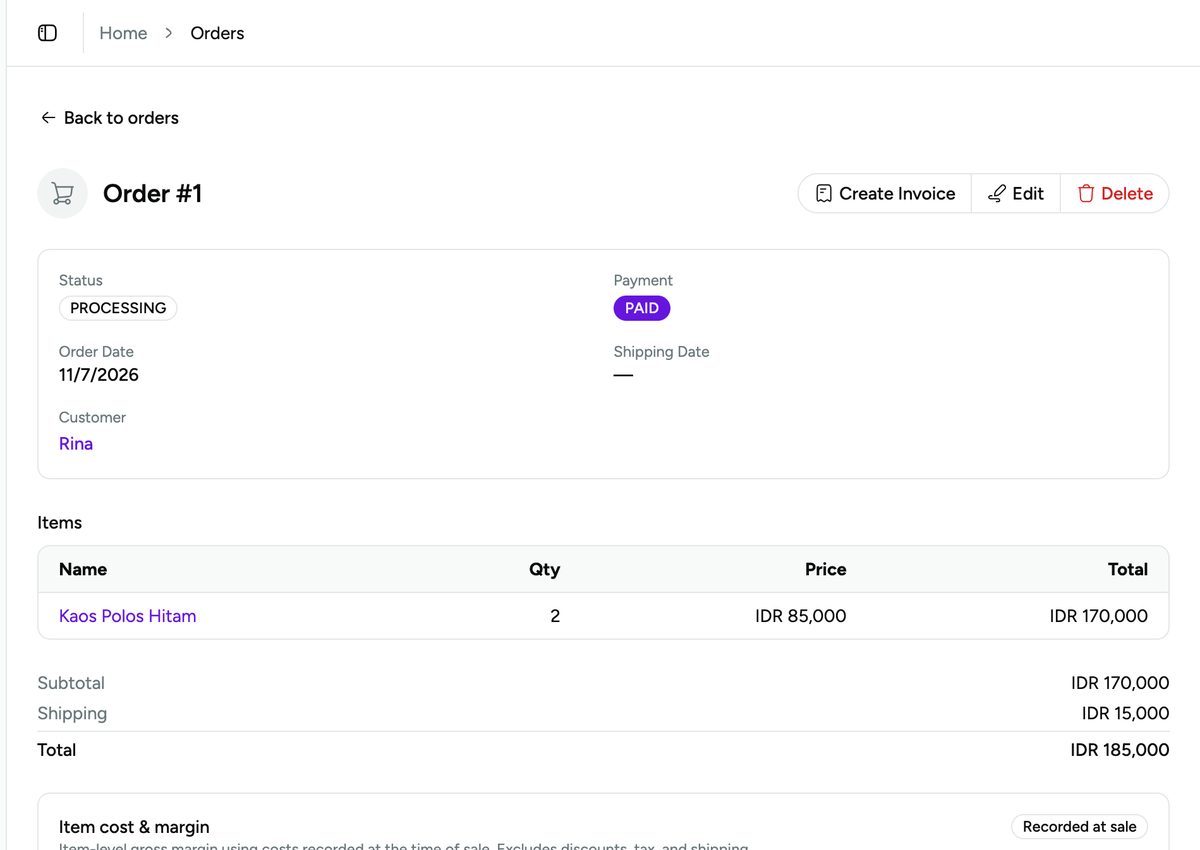 The same order on the records screen. Chat format above, record below — nothing typed twice.
Frequently asked questions
What does a good online-shop order template look like?
Buyer name, city/address, item with variant, quantity, payment method, and notes — sent as one fill-in block, and always moved into a single log on the same day. Those six fields close the wrong-shipment and wrong-count holes where orders actually leak.
How do I ask buyers to fill a format without sounding stiff?
Send it when they ask the price, framed as service: “so we can process this fast”. Buyers read a short 6-line form as a tidy shop, not paperwork — especially when it’s one keystroke away via a /order quick reply.
What’s the difference between an order template and an invoice?
The order template is the work request — what the buyer wants. The invoice is the bill — what they owe and proof after payment. Correct flow: template in → logged → confirmed → paid → invoice issued from the record, never retyped from memory.
Can I just use a Google Form instead of chat templates?
You can — forms are great for orders coming from content and bios. But most buyers still start in chat, and a form can’t rescue a conversation already underway. The practical combo: form for “cold” orders from posts, chat template for orders born in conversation — both flowing into the same log.
Pick one template, install it tonight
- Copy the template that matches your shop from the three blocks above.
- Paste it into WhatsApp Business as
/order. - From tomorrow, ask every new order through that format — and move every order into your log the same day.
And if you’d rather have the chat-to-record step done for you: a Vio assistant reads the chat you paste, asks for whatever the message is missing (exactly the template columns above), then logs the complete order — customer, totals and payment status included.
Try Vio free — chats in, orders logged, nothing retyped.


0 Comments
Join the conversation