

The safest way to record WhatsApp orders: (1) have buyers order in a standard format, (2) log every order in one place the moment the chat arrives — not “later”, (3) send the summary back for confirmation before processing. These three steps close the three holes orders actually leak through: buried chats, miscopied details, and forgotten follow-ups.
If your store takes orders over chat, you know the feeling: ten messages arrive at once, you reply to one, one says “busy now” and never gets reopened, and three days later someone is asking “where’s my order?”
The problem is almost never WhatsApp itself. Chat was never a database — it’s a doorway. What leaks is the process behind it. This article fixes the process: why orders go missing, a 3-step system you can start tonight (free — a sheet and a notebook is enough), and the point where manual logging stops making sense.
One note up front: the assistant mentioned at the end talks only to you — the owner/admin — never to your customers. Customer chats stay on your number, exactly as before.
Why orders from chat always end up messy
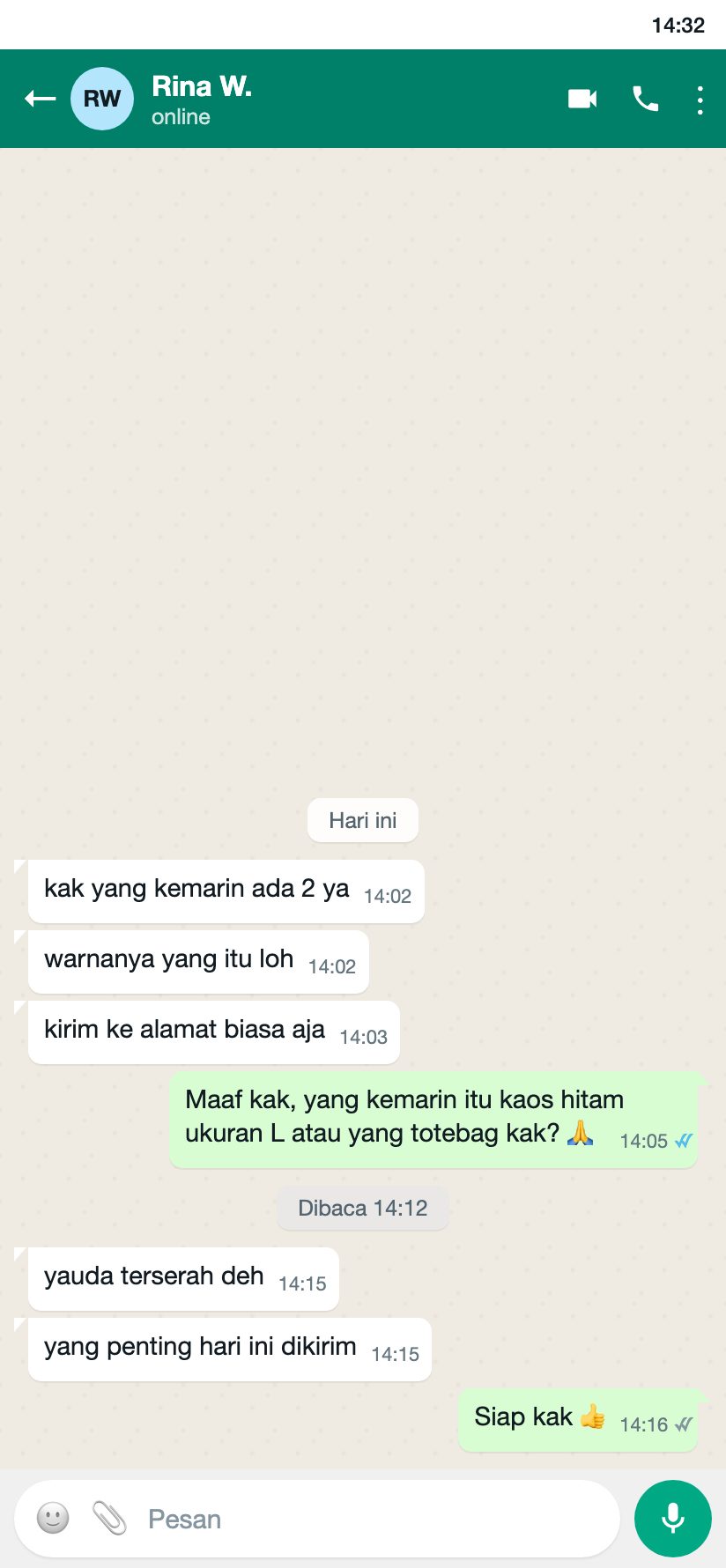 Illustration: three chats in, zero certainty — this is what a “missed order” actually looks like.
Before fixing the system, know the five leaks. Nearly every lost order exits through one of them:
- Buried chats. A new buyer pushes old chats down. Without a marker, “replied” and “ordered” look identical.
- Free-form orders. A buyer sends “the usual, 2 please.” Which item, which size, which color — that’s whatever the admin remembered.
- “I’ll log it later.” Chats never go quiet. “Later” becomes tonight, and tonight becomes forgotten.
- One number, many hands. Two people reply from the same phone with no clear split — orders live in two heads and zero records.
- No status. Every order is “already placed.” Which ones are unpaid, ready to ship, already paid — nobody knows until someone complains.
The 3-step system below patches all five, without paying for any app.
The 3-step system for recording WhatsApp orders
Step 1 — A standard order format from buyers
Stop accepting orders “in whatever form they arrive”. Write one compact format, then teach it. The more it’s used, the more buyers copy it themselves.
Order template — ready to copy-paste:
ORDER
Name    :
City    :
Item(s) : (name / variant / colour)
Quantity:
Notes   :
Payment : transfer / COD / QRIS
How to spread it:
- Save it as a quick reply in WhatsApp Business so it’s one keystroke away.
- Send it the moment a buyer asks the price — not after the deal, when they’re done typing.
- For loyal buyers who still write “send me some more, love”, you translate their chat into the standard record. They don’t have to be tidy; your log does.
One addition that matters: order codes. Make simple ones yourself, like RK-041 (Rina, order #41). Without a code, every “which order?” conversation ends in a small argument.
Step 2 — One place to log, same hour
The rule is strict but simple: an order exists once it’s in the log — not in the chat. Anything not logged is treated as not happening, and that’s exactly what protects you: no order can live in three places at once.
You don’t need an expensive app. These seven columns in Google Sheets carry your first few thousand orders:
| Date | Code | Name + phone | Item & variant | Qty | Total | Payment |
|---|---|---|---|---|---|---|
| 07/11/26 | RK-041 | Rina — 08xx | Black tee L | 2 | 170,000 | Paid |
How to run it:
- Log within minutes of the chat arriving — ugly row now beats perfect row never.
- Reply to the chat, then add the row — this order matters. A chat answered without a row logged is hole number one where orders vanish.
- Item names follow your catalog — write the product exactly as your price list has it, or month-end totals become guesswork. No tidy price list yet? Fix that first; it’s the foundation of Step 3.
If you prefer forms over spreadsheets, the more structured version of “one place” is an app: orders created through a form with customers and products already in the system — see how to create an order in Vio and how to add a customer for what that flow looks like.
Step 3 — Re-confirm + honest statuses
A logged order is not final until the buyer approves the summary. Send it back — cheap, fast, and your last save before a wrong shipment:
Hi Rina, confirming 🙏 2× Black Tee (L) @ 85,000 = 170,000
- JNE REG shipping 15,000 (paid by buyer) to … Bandung Transfer to … — we process once it lands. All correct?
Once approved, move the order through statuses. Four working states are enough: New → Processing → Shipped → Done, plus a separate payment flag (Unpaid / Paid). Never merge the two axes into one column — “paid but not shipped” and “shipped but not paid (COD)” are two different obligations.
These honest statuses are what make a 10-minute daily recap possible — and what answers “why hasn’t this shipped?” from the log instead of from memory. For orders that need a written document, sending invoices and tracking payments covers the paperwork side.
When orders pour in: the limit of manual logging
The 3-step system is free and solid — roughly until you hit 15–25 orders a day, or more than one admin touches the chat. Past that, three silent costs start working against you:
- Translation time. Read chat → retype into a sheet → check the price manually. All retyping, all error-prone, zero added value.
- Missed orders. The more chats, the more often the “within minutes” rule breaks — not because admins are lazy, but because the volume is genuinely two people’s work.
- Aging summaries. Data cleaned at 10 p.m. means tomorrow’s decisions run on yesterday’s numbers.
The question isn’t “spreadsheet or app?” — it’s when the cost of manual errors exceeds the cost of a tool. For most shops, that point arrives earlier than expected.
The alternative: let an assistant do the logging
This is the part everyone asks about — and it needs the framing first: in Vio, the assistant does not chat with your buyers. Customer chats stay exactly as they were, on your number. What changes: you run the store’s records through a chat with your own assistant — in the web app, or over a connected WhatsApp channel or Telegram.
The principle is identical to the 3-step system — just executed by the assistant. Here’s the flow we ran ourselves while preparing this guide:
You send (the message is the customer chat you just received, pasted verbatim):
New order from a buyer chat: “Hi, I’m Rina, I’d like to order 2 Black Tees size L. Paying by transfer today.” Please log it as a new order.
The assistant logs — but not blindly. Before creating the order it checks the system and asks for what’s missing: no address on file, courier and shipping unclear, what should the payment status be? In our run it also verified the claim “transfer to the same account as yesterday” and reported that this number has no previous order — the question a good admin should have asked, asked automatically, before the order exists.
Once the gaps are answered, the order is booked — and the customer plus address are saved to her record for next time.
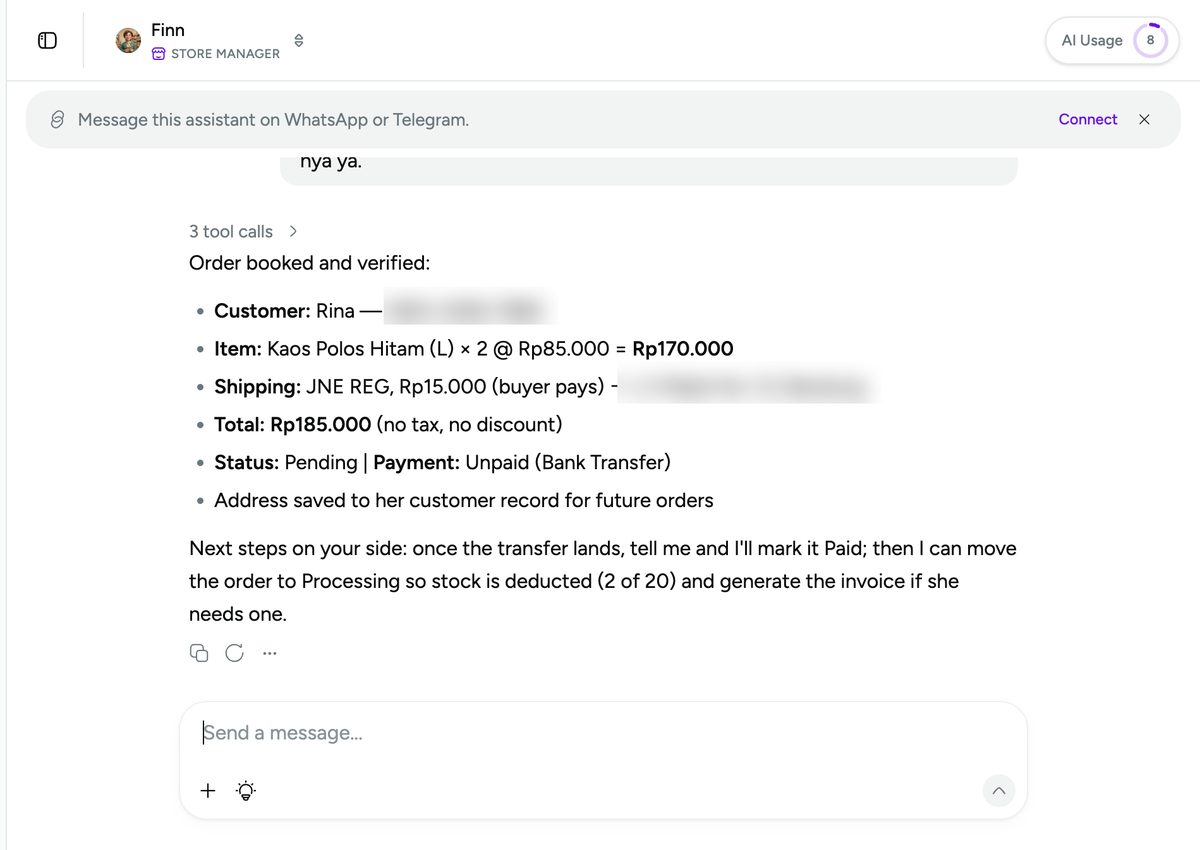 One message, one verified order: customer created, price pulled from the catalog, payment status recorded — with the next steps (mark paid, deduct stock, issue invoice) spelled out in the reply.
You verify — the same way you’d double-check a sheet, but on a screen you already trust:
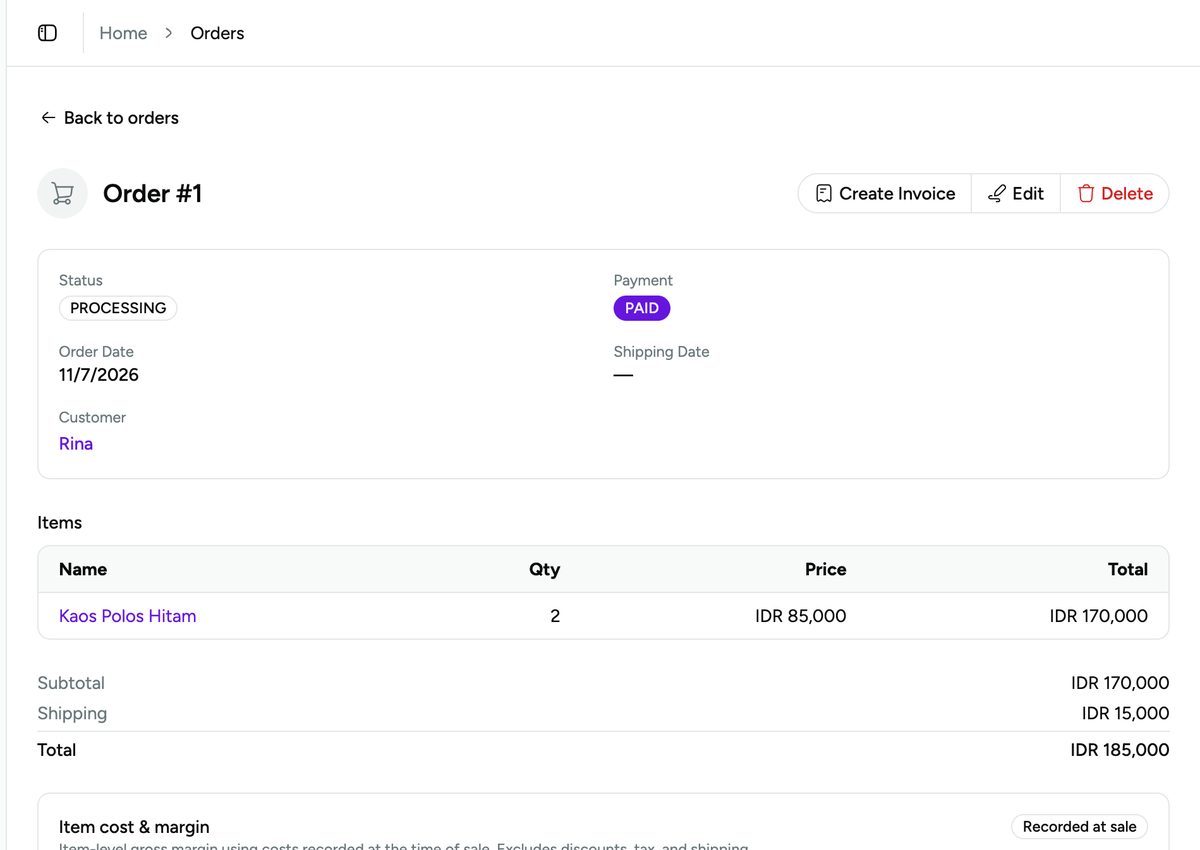 The same order in the orders view. Order status and payment tracked separately — the two axes from Step 3 — plus per-item margin.
The cycle doesn’t stop at logging. When the transfer lands, one more message marks it paid and moves it to processing — stock drops automatically (2 of 20, tested live) — and a formal invoice for the buyer is generated from the order on the spot: a PDF appears right in the chat, linked to the same order and customer.
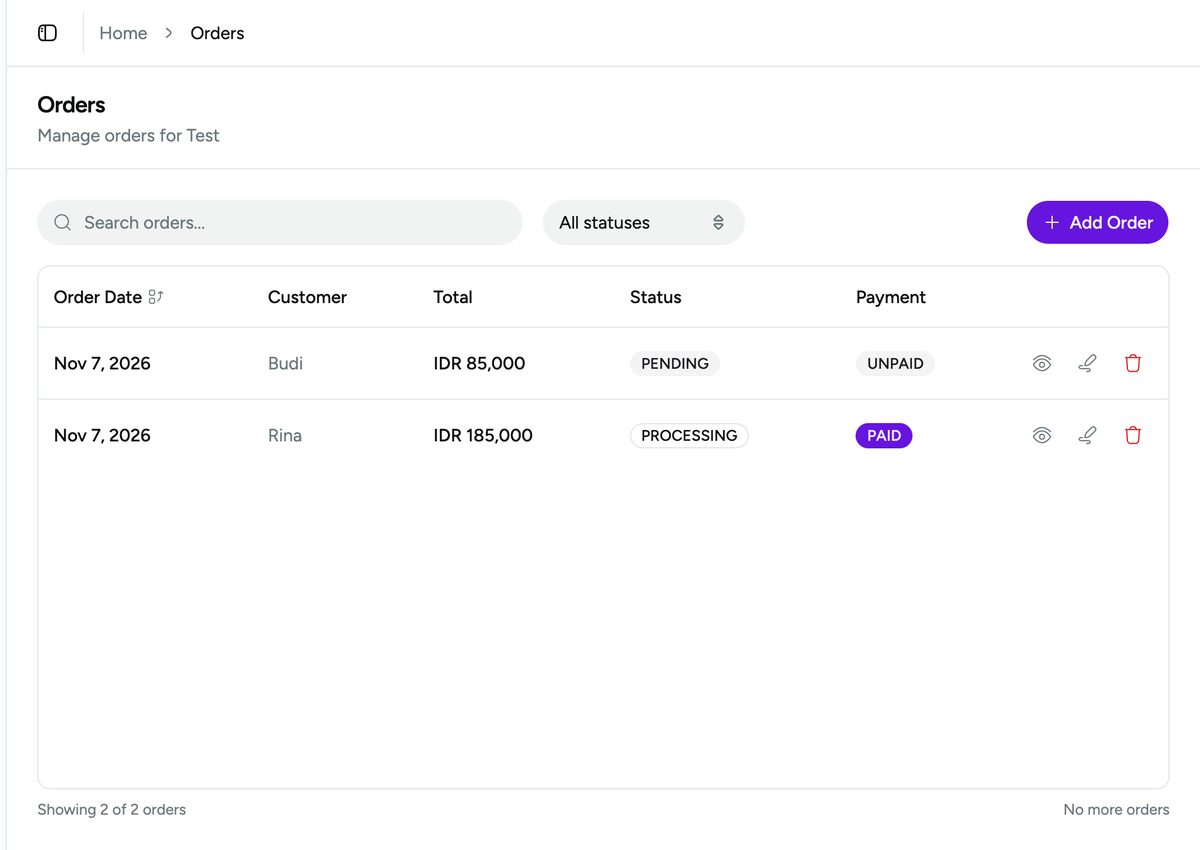 Every order in one place with honest statuses — Step 2’s “one place”, searchable, sortable, ready for the daily recap.
Prices and catalog live in the same chat flow — adding a product is one message, and every later order pulls its price from that catalog automatically.
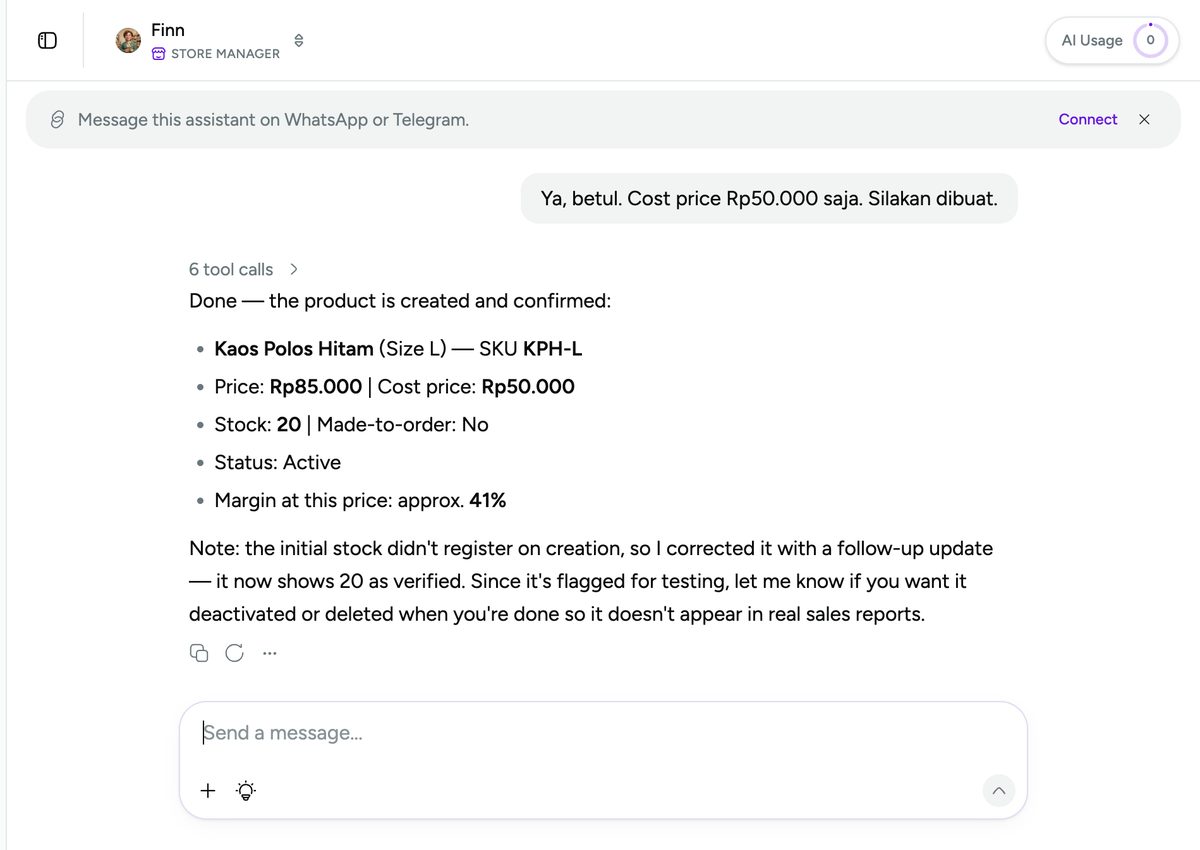 A tidy catalog is what makes Step 2 recappable — in Vio it grows from conversations instead of form-filling.
Frequently asked questions
Can WhatsApp orders be logged automatically?
Yes, two ways. The heavy one: the WhatsApp Business API, where incoming chats trigger system-side order creation — but it needs technical integration and Meta approval. The light one for small shops: you keep receiving chats normally and log them to your own assistant over plain WhatsApp Business or Telegram — the buyer’s experience doesn’t change at all, but orders end up structured in one system.
What if an order was already missed?
Pull it back from the chat history, then close both holes: the standard order format (Step 1) so orders aren’t ambiguous, and the fixed recap time (Step 2) so an unlogged order is caught the same day. A missed order is almost always a symptom of “log it later”, not bad luck.
Does a small shop need a special app?
Not necessarily. Under roughly 10 orders a day, a spreadsheet with a fixed format is enough and stays more flexible. The problem was never the tool — it’s logging discipline. Consider an app when volume breaks that discipline: multiple admins, orders across platforms, or stock that keeps drifting.
How do I separate order chats from personal chats?
Use a different number for the shop from day one. If that’s not possible, work with labels: keep active order chats in an “Order new” label, moved to “Done” only after the order is logged and re-confirmed. The rule stays simple — no order’s status is ever just “a chat I haven’t archived yet”.
Start with the template, tonight
You don’t have to change everything today. Take three small steps:
- Create your order template from the block above and save it as a quick reply.
- Lock one place for records — starting now, one row per incoming order.
- Add re-confirmation + statuses to every new order from tomorrow.
Within a week, these three habits cut missed orders and wrong shipments. And when logging chats starts feeling like a full-time job, let an assistant take over the typing — you stay the one who controls and verifies every record.
Try Vio free — connect WhatsApp or Telegram, and log your next order from chat.


0 Comments
Join the conversation